

How to Set Up & Use Windscribe on a Smart TV


Setting up Windscribe on a smart TV depends on what your TV actually lets you install.
If you have Android TV, Nvidia Shield, Fire TV, or Apple TV, you can install the Windscribe app directly from the device’s app store, log in, and connect.
If you have a Samsung TV, LG TV, Roku TV, Vizio TV, Hisense VIDAA TV, or another TV that doesn’t support VPN apps, you’ll need a workaround: Secure Hotspot, router setup, Proxy Gateway, Control D, or an external streaming device.
This guide walks through each option so you can stop asking your TV to do networking and start watching things.
First, Check What Your TV Supports
Before you install anything, figure out which group your TV belongs to.
Use the native Windscribe app if you have:
- Android TV
- Nvidia Shield
- Amazon Fire TV or Fire Stick
- Apple TV running tvOS 17.5 or newer
Use a workaround if you have:
- Samsung TV running Tizen
- LG TV running webOS
- Roku TV or Roku device
- Vizio TV
- Hisense VIDAA models
- Any other TV that doesn't support VPN apps
The rule is simple: If your TV has a Windscribe app in its app store, install it there. If it doesn’t, you protect the TV by routing its connection through another device or your router.
Before You Start
Here’s what you’ll need before setting up Windscribe on your TV.
- A Windscribe account: You need an account to connect. Free accounts get 2 GB of data per month by default, or up to 10 GB per month after confirming an email address.
- A plan, if you stream a lot: Streaming can eat free data quickly. Pro gives you unlimited data and all VPN locations for $9/month or $69/year. Build-A-Plan lets you choose locations for $1 per location per month, with a $3 monthly minimum. You can add unlimited data access for an extra $1/month.
- The right setup method: Native app is easiest. Secure Hotspot is easiest for unsupported TVs if you have a compatible Windows PC. Router setup is best for whole-home coverage. Proxy Gateway and Control D are useful when your TV supports proxy or DNS settings.
- A little patience with TV remotes: Typing passwords with a TV remote is how villains are made. Use Lazy Login when it’s available.
Method 1: Install the Native Windscribe App
This is the best setup for Android TV, Nvidia Shield, Fire TV, Fire Stick, and Apple TV.
The app runs directly on your streaming device, so you can choose a Windscribe location, connect, and route the TV’s traffic through the VPN.
Install on Android TV or Nvidia Shield
- Open the Google Play Store on your TV or Nvidia Shield.
- Search for Windscribe VPN.
- Select the official Windscribe app.
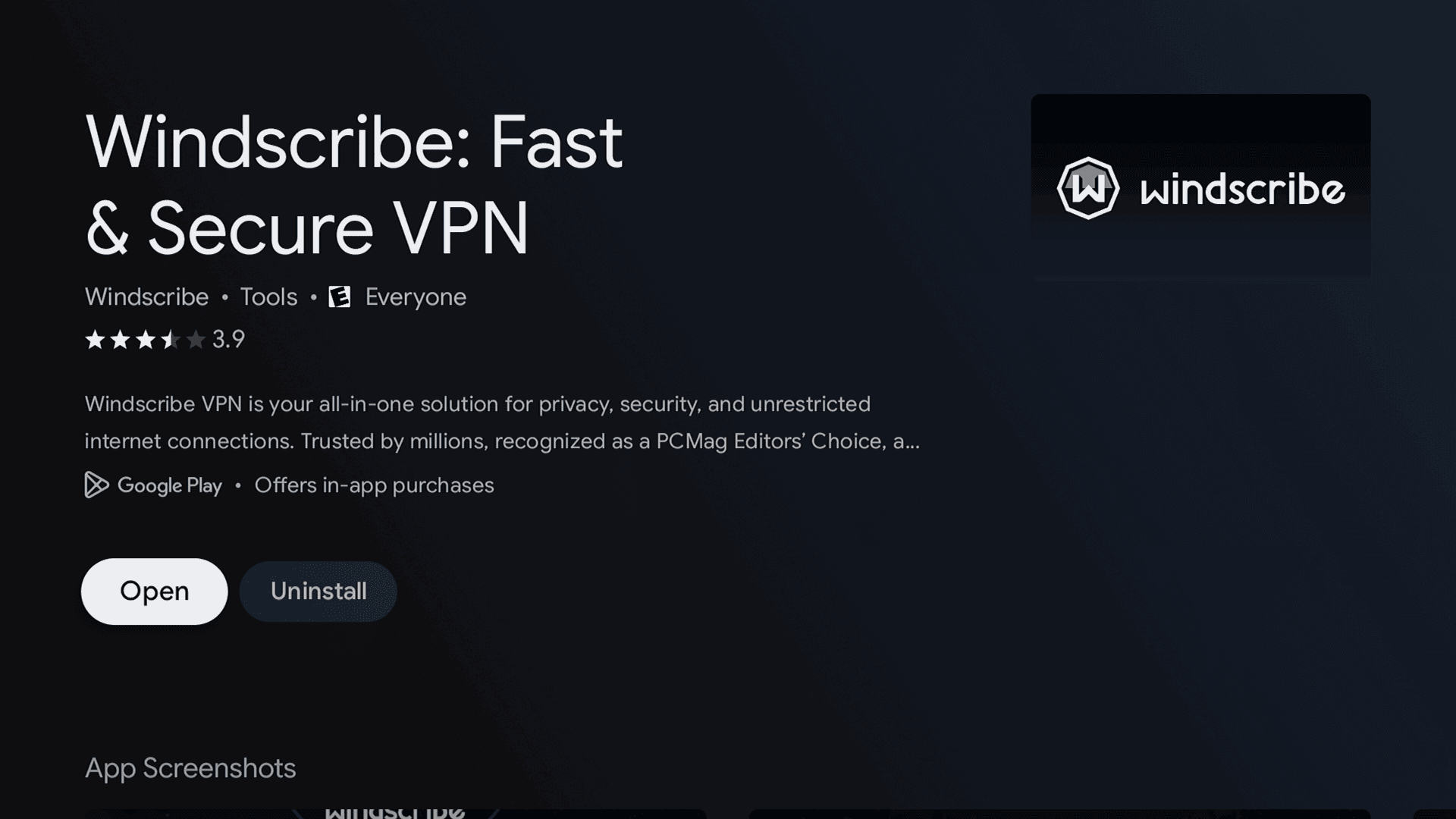
Figure 1: The Windscribe app listing in the Google Play Store on a TCL TV.
- Click Install.
- Open the app once installation finishes.
- Log in with Lazy Login if available, or enter your account credentials.
- Choose a location and connect.
Install on Amazon Fire TV or Fire Stick
- Open the Amazon Appstore on your Fire TV device.
- Search for Windscribe VPN.
- Select the official Windscribe app.
- Click Download or Get.
- Open the app.
- Log in with Lazy Login if available.
- Choose a location and connect.
Install on Apple TV
- Open the App Store on your Apple TV.
- Search for Windscribe.
- Download and open the app.
- Select Lazy Login to avoid typing your password with the remote.
- Choose a server.
- Connect and start streaming privately.
Apple TV requires tvOS 17.5 or newer for the current Windscribe app. Older Apple TV models need a router, hotspot, or AirPlay-style workaround instead.
Method 2: Use Secure Hotspot
Secure Hotspot is usually the easiest workaround for TVs that can’t install Windscribe directly.
This works by connecting your Windows PC to Windscribe, then sharing that VPN-protected connection as a Wi-Fi network. Your TV connects to that hotspot like normal Wi-Fi, but the traffic goes through Windscribe.
This is best for Samsung, LG, Roku, Vizio, Hisense VIDAA, and other TVs without native VPN app support.
Set Up Secure Hotspot
- Install Windscribe on a Windows PC.
- Connect Windscribe to your preferred location.
- Open Windscribe Preferences.
- Go to Connection.
- Turn on Secure Hotspot.
- Give the hotspot a network name and password.
- On your smart TV, open Wi-Fi settings.
- Connect to the hotspot from your Windows PC.
- Use your TV as usual.
Secure Hotspot requires a Windows PC with a compatible Wi-Fi adapter. If your wireless card or driver doesn’t support hotspot sharing, this method may not work. Very Windows. Very “update your driver and pray.”
Method 3: Install Windscribe on Your Router
Router setup is best if you want to protect every device connected to your Wi-Fi, including TVs that can’t run VPN apps.
Once Windscribe is configured on the router, your TV doesn’t need its own VPN app. It just connects to Wi-Fi like usual, while the router handles the VPN tunnel.
Figure 5: A Wi-Fi router shown with streaming service icons.
Set Up Windscribe on a Router
- Check that your router supports VPN client configurations.
- Log in to your Windscribe account.
- Open the Config Generator.
- Generate a WireGuard, OpenVPN, or IKEv2 config.
- Log in to your router’s admin panel.
- Find the VPN client section.
- Upload or enter the Windscribe config.
- Save the settings and connect.
- Use your smart TV normally.
Router setup is more technical than the native app or Secure Hotspot. It also depends heavily on your router model and firmware.
Some routers support VPN clients out of the box. Some need custom firmware. Some are just plastic rectangles with lights and dreams.
Custom router configs require a paid Windscribe plan, either Pro or Build-A-Plan.
Method 4: Use Proxy Gateway
Proxy Gateway is another workaround for TVs that do not support VPN apps but do support manual proxy settings.
With Proxy Gateway, your Windows, Mac, or Linux computer runs Windscribe and creates a local HTTP or SOCKS5 proxy on your network. Your TV then connects through that proxy.
This is useful if your TV has proxy settings in its network menu.
Set Up Proxy Gateway
- Install Windscribe on your Windows, Mac, or Linux computer.
- Connect Windscribe to your preferred VPN location.
- Open Windscribe Preferences.
- Go to Connection.
- Enable Proxy Gateway.
- Choose HTTP or SOCKS5.
- Copy the LAN IP address and port shown in the app.
- On your TV, open network settings.
- Enter the proxy IP address and port.
- Save the settings and test your connection.
Proxy Gateway only works if your TV lets you manually enter proxy settings. Many TVs do not. Because obviously, the one useful setting would be hidden, missing, or renamed something deeply unhelpful.
Method 5: Use Control D
Control D is a DNS-based option from the same team behind Windscribe.
It isn't a VPN. It doesn't create an encrypted tunnel. It doesn't provide the same privacy as routing your TV through Windscribe.
But it can be useful for smart TVs that let you change DNS settings but do not support VPN apps, proxy settings, or easy router VPN setup.
Use Control D if your main goal is DNS-level control or location-related DNS routing on a device that refuses to run a proper VPN app.
Control D is a separate service with its own subscription and isn't included with your Windscribe plan.
Method 6: Use an External Streaming Device
If your TV doesn’t support Windscribe directly, the easiest fix may be to stop fighting the TV.
Plug in a device that does support Windscribe, like:
- Amazon Fire TV Stick
- Nvidia Shield
- Android TV streaming box
- Apple TV running tvOS 17.5 or newer
Then install Windscribe on that device instead of the TV itself.
This is often cleaner than trying to convince a Samsung or LG TV to behave like a VPN-capable computer. It is a television. It barely wants to update its own apps.
Logging In and Connecting to a TV App
If you installed the native Windscribe app, the login process is simple.
- Open Windscribe on your TV.
- Select Log In.
- Use Lazy Login if available.
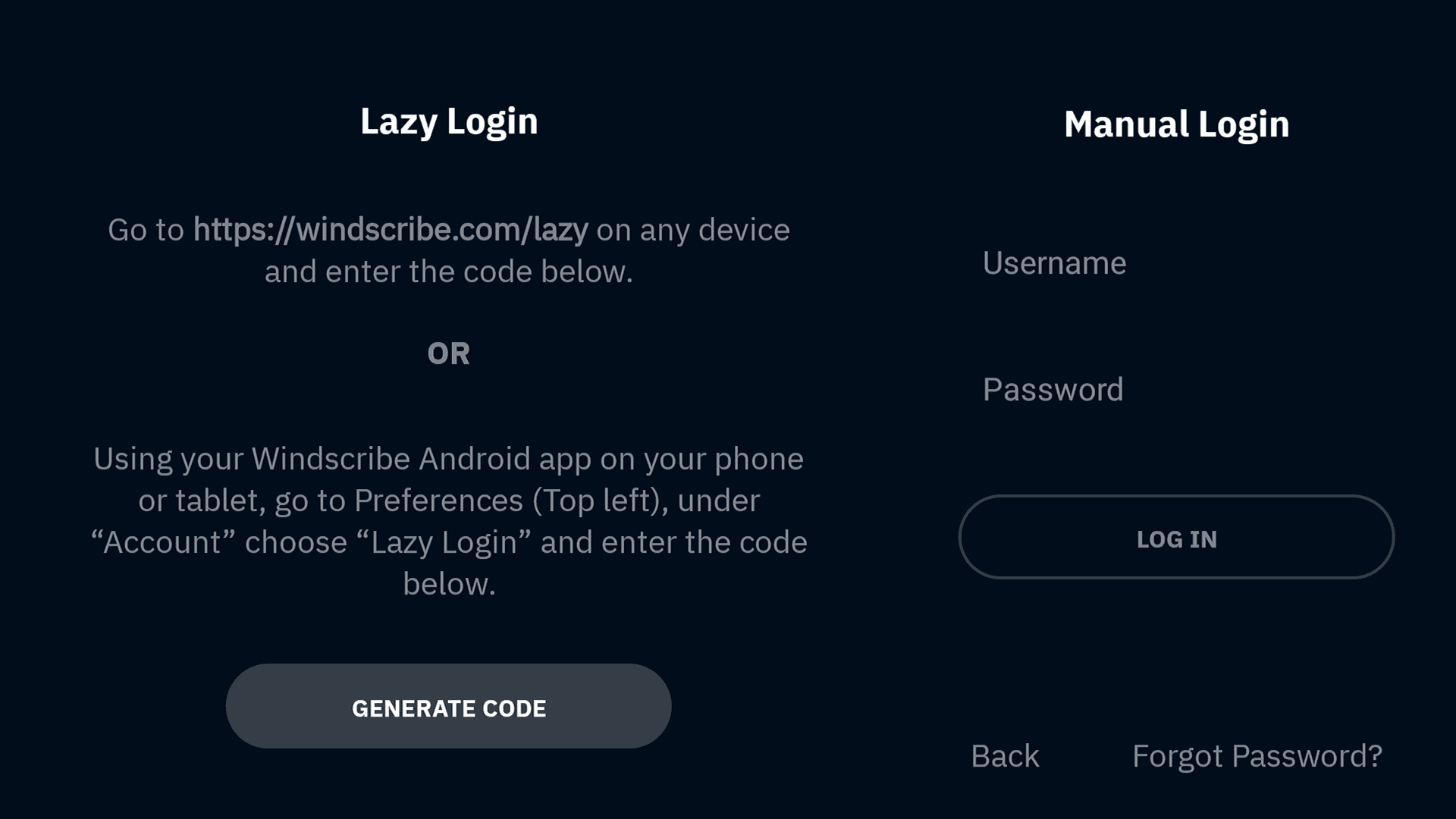
Figure 2: Windscribe’s Lazy Login and Manual Login options on a TCL TV.
- Enter the code shown on your TV using your phone or computer.
- Once logged in, select the main connect button.
- Choose a location or use the best available server.
- Allow the VPN permission prompt if your TV asks.
Lazy Login is the better option because typing long passwords with a TV remote isn't a security feature. It’s a punishment.
Location note: Free accounts can connect only to free locations. Paid locations are marked with a star and require either Pro or a Build-A-Plan subscription that includes that location.
Figure 3: A separate app open on the TCL TV. This screen does not show Windscribe’s connection state.
Choose the Best Location for Streaming
For the fastest streaming, choose a Windscribe location close to your real location.
Shorter distance usually means better speeds, less buffering, and fewer “why does this look like it was filmed through soup?” moments.
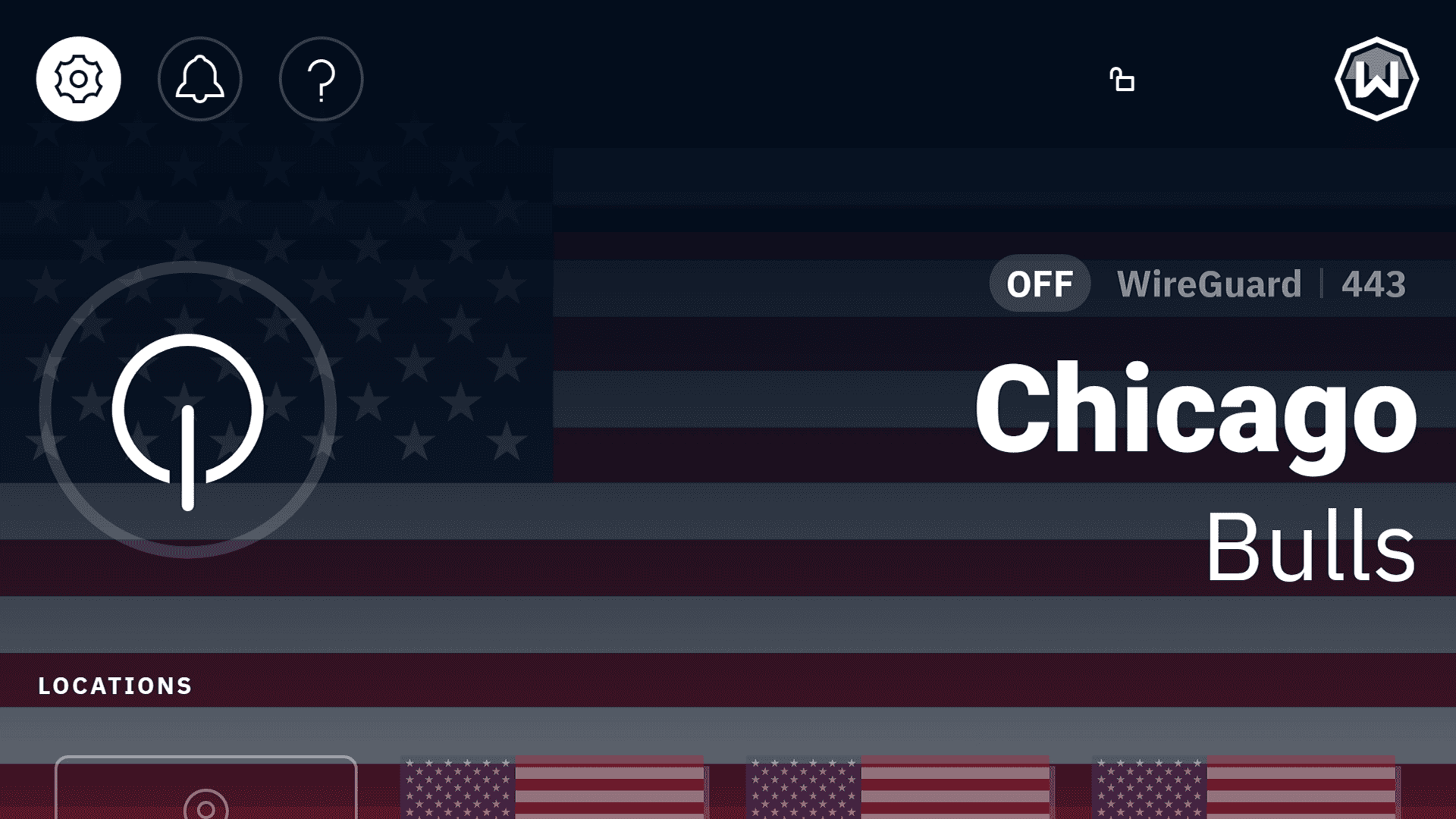
Figure 4: Windscribe’s location screen on a TCL TV while disconnected. The public IP address is redacted.
If you want a streaming app to see you in a specific country, connect to a server in that country before opening the app. For example, use a UK location before opening a UK streaming app, or a US location before opening a US streaming app.
If an app shows the wrong library, fails to load, or gives you a VPN/proxy error, try another city in the same country. Streaming platforms sometimes block specific server ranges, so switching locations can help.
Also, fully close and reopen the streaming app after changing VPN locations. Some apps cling to old location data like a raccoon with a stolen sandwich.
Best Setup by TV Type
- For Android TV, Nvidia Shield, Fire TV, Fire Stick, or Apple TV, install the native Windscribe app from the device’s app store.
- For Samsung, LG, Roku, Vizio, Hisense VIDAA, or other unsupported TVs, try Secure Hotspot first if you have a compatible Windows PC.
- Use router setup if you want every device on your Wi-Fi protected and you’re comfortable editing router settings.
- Use Proxy Gateway if your TV supports manual proxy settings.
- Use Control D if your TV only lets you change DNS settings and you do not need full VPN encryption.
- Use an external streaming device if your TV’s built-in operating system is useless. Sometimes the best way to fix a smart TV is to make it slightly dumber and plug in something better.

