Windscribe
FunctiesAbonnementenDownloadenInloggen
Windscribe
DownloadenWijzigingslogboekPrijzenShopOndersteuningFunctiesOpen sourceEen vriend uitnodigenGratis DNSEthiek en filosofieVPN-servers
Apps
VPN voor WindowsVPN voor AndroidVPN voor MacVPN voor LinuxVPN voor ChromeVPN voor FireTVVPN voor FirefoxVPN voor Apple TVVPN voor MS EdgeVPN voor HuaweiVPN voor iPhoneVPN voor routersWindscribe F-Droid
Bedrijf
Over onsPrivacyVoorwaardenVDPVacaturesBlogInfoGang
Windscribe logo
YouTube
Reddit
Discord
X
Telegram
Instagram
TikTok
© 2026 Windscribe Limited
How To Change The Desktop App Skin
Author
Johnny Hollick
Aug 21, 2025
Divider
Help
>
Guides

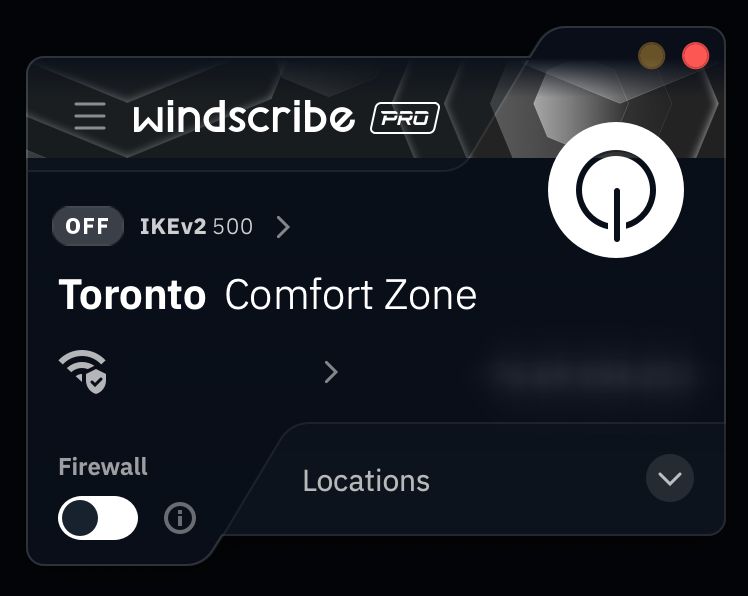
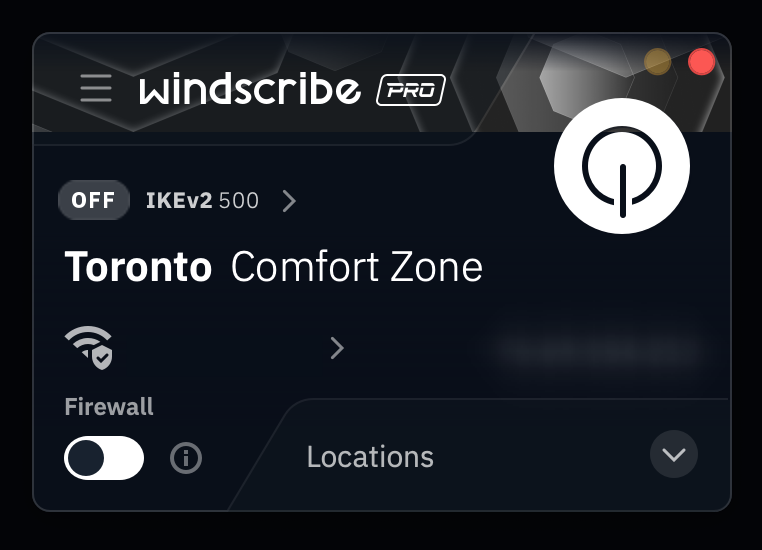
The App Skin option allows you to customize the desktop GUI skin, which modifies the shape of the app itself. You can select between 2 options: 

Alpha (our classic default GUI setting)

Alpha skin (default)

or

Van Gogh (defined by a flat & even 'earless' design)

Van Gogh

While this feature has been available in the app for a while, it has been relocated to the Look & Feel tab beginning with desktop app version 2.16.11+. 


The Steps


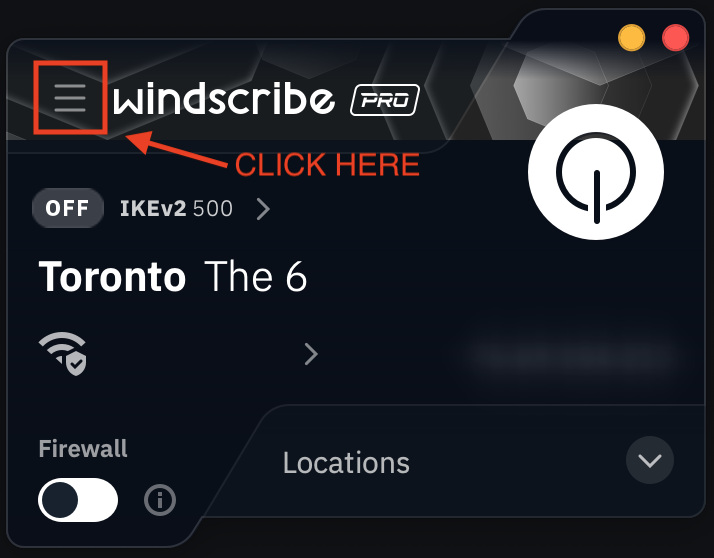
1. Open your Windscribe app Preferences 

Preferences menu location

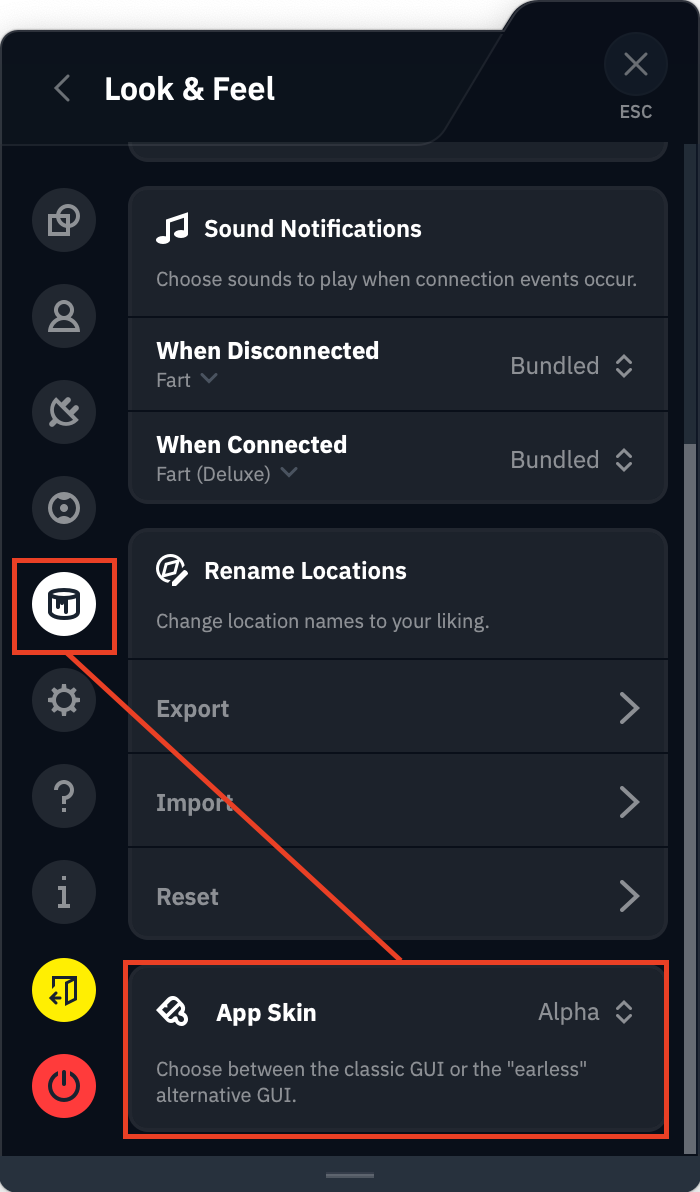
2. Click on the Look & Feel tab (indicated by the paint can icon), and scroll down to the App Skin option

App Skin setting

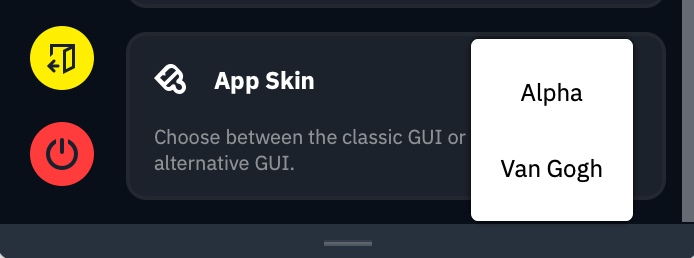
3.  Select from either Alpha or Van Gogh options

App Skin options dropdown

Once selected, your app skin will automatically update to reflect your choice. These settings will be saved on exit.

Get in touch

r/Windscribe

Find solutions, discuss ideas and share your feelings on our subreddit.

Discord

Join the discussion with our active community and make real friends!

Contact Support

Feeling completely lost? Contact Support.