


Here is the plain-English, beginner-friendly way to set up qBittorrent with Windscribe so your downloads stay yours, plus a quick test to confirm it actually worked.
Every time you load a torrent on a plain ISP connection, you are quietly handing your real IP address to every other peer in the swarm. Meanwhile, your internet provider can see enough connection metadata to make the whole thing far less private than you probably want. A VPN helps prevent this by routing that traffic through one of our locations, so the swarm sees our IP instead of yours, but only when the client is configured correctly.
BitTorrent itself is perfectly legal technology. This guide assumes you are only downloading and sharing files you actually have the right to use. What you move through it is on you.
A firm word before you change a single setting: this guide is written for qBittorrent and qBittorrent only. The network interface binding described below is specific to how this client handles its connections. Apply the same idea blindly to a browser, a game launcher, or another torrent app and you can break that app's connection or, worse, create a leak that defeats the reason you set up a VPN in the first place.
Most VPNs ship with a "kill switch." It watches your connection and, the moment it detects that the VPN has dropped, it cuts your internet to stop your real IP from getting out. The catch is timing: a reactive kill switch can leave a brief window between the tunnel failing and the switch cutting in. On a busy torrent connection, that window can be enough to matter.
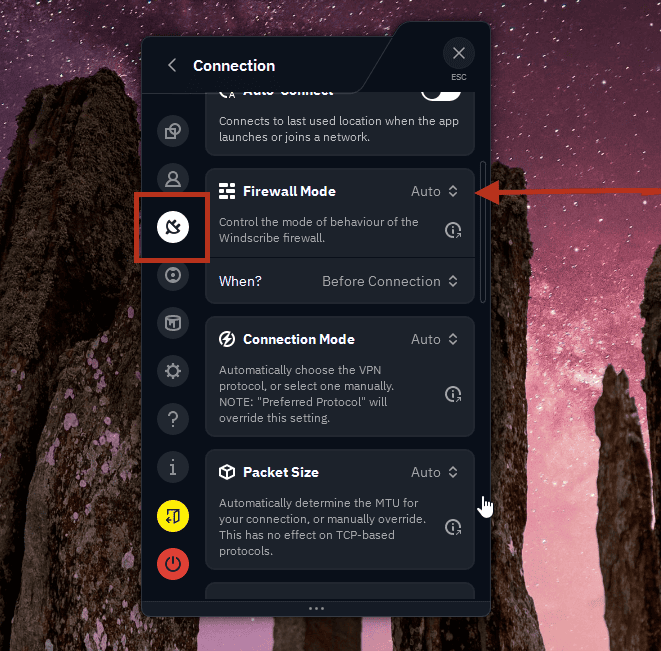
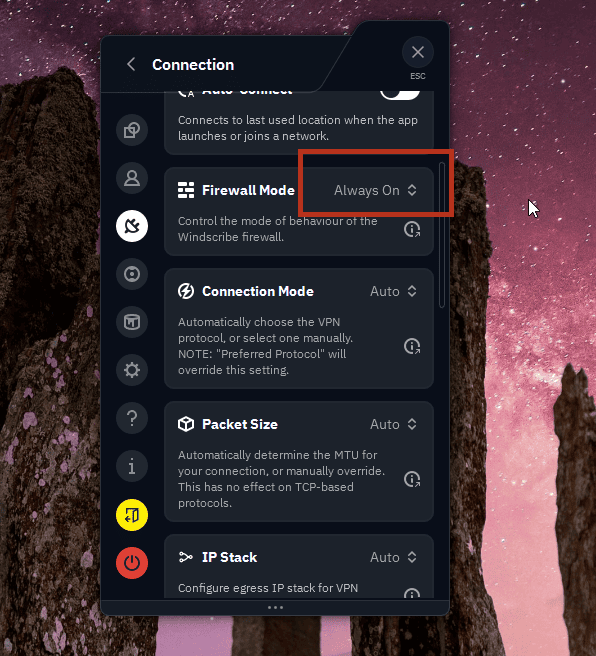
Windscribe's Firewall is built the other way around. Set to Always On, it blocks every connection that is not travelling through the VPN tunnel by design, so there is no fallback route for your traffic to slip down in the first place.
You will switch this on in a moment, under Preferences > Connection > Firewall Mode > Always On.
There is one clean, beginner-friendly way to lock qBittorrent to your VPN: bind it to the Windscribe network interface.
"Interface binding" sounds technical, but the idea is simple. You are telling qBittorrent it is only allowed to use one specific door to reach the internet (the VPN connection). If that door is closed because the VPN is off, qBittorrent just sits there doing nothing, instead of quietly falling back to your real connection.
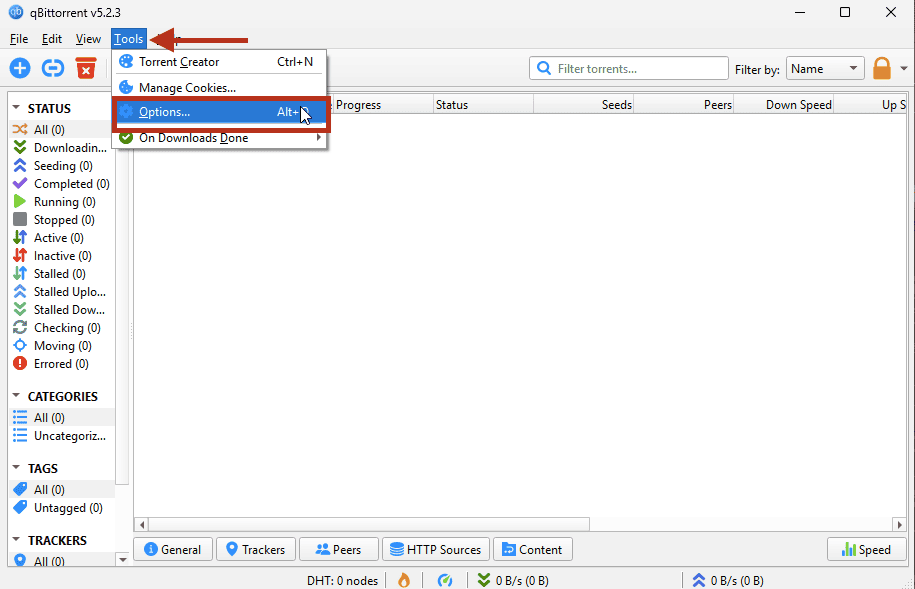
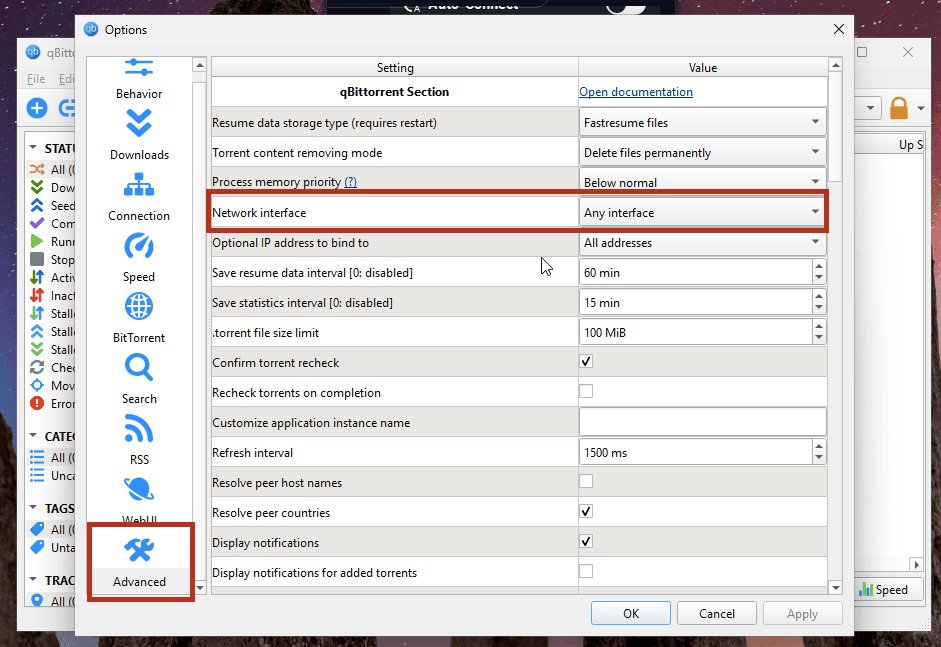
From now on, if the VPN is not connected, qBittorrent will refuse to move any data. That is exactly what you want.
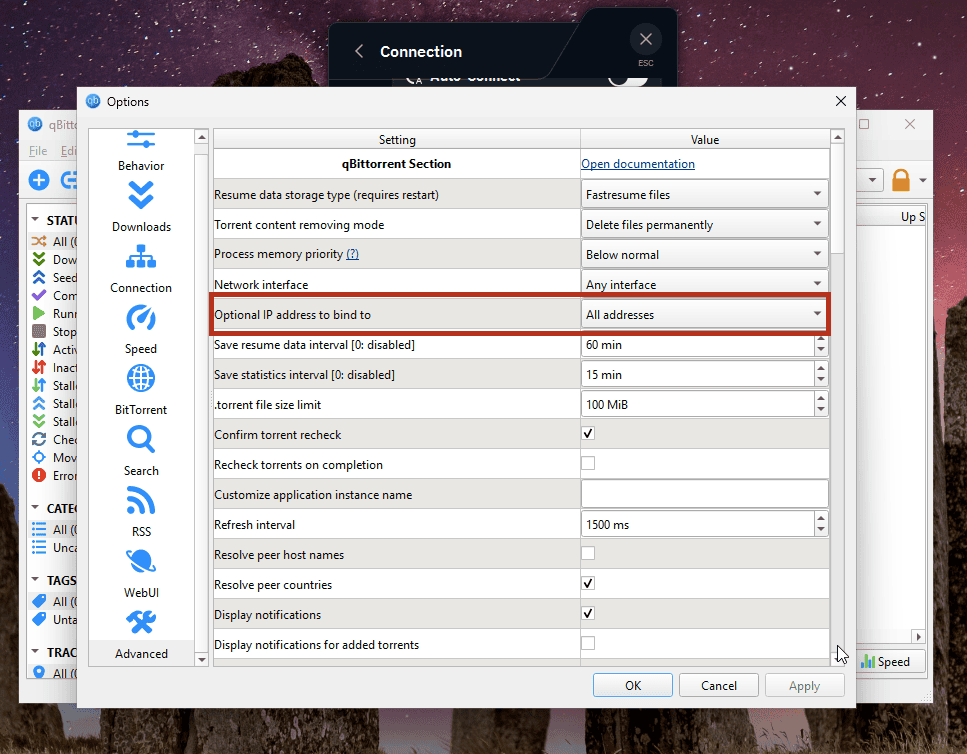
Advanced note (optional, skip this if you are new): qBittorrent also lets you bind to a single specific IP address rather than the whole interface. It sounds stricter, but it tends to backfire. Your tunnel's IP address can change when you reconnect, switch protocol, or change location, and a hardcoded IP will simply stop working the moment it does. Binding to the interface by name (the step above) avoids that headache entirely.
Configuration is only half the job. The order in which you start and stop things is what keeps the setup tight. Run this loop every time, in this order:
The one rule to remember: the torrent client opens after the VPN and closes before it.
Here is the step most people skip, and it takes about thirty seconds. A normal "what is my IP" website only checks your browser, not qBittorrent, so it tells you nothing about whether your torrents are actually routed through the VPN. You need a check that the torrent client itself answers.
The test should show your Windscribe location's IP, not your home IP. If it shows your real address instead, stop torrenting and recheck your interface binding.
If qBittorrent connects to peers fine but your trackers refuse to resolve (you see them stuck as "Not working," "Stalled," or "Unreachable"), the cause could be sitting in your privacy settings. R.O.B.E.R.T. is our DNS filter, and it can block domains that match an active blocklist or custom rule. Once in a while, a blocklist or a custom rule can catch a tracker domain and stop it from loading.
To check, log into your account and head directly to My Account > R.O.B.E.R.T. to review your active blocklists and custom rules. If a tracker domain is being blocked, add it as a whitelist rule, save, and reconnect so the change applies.


Torrenting on Windscribe requires a paid plan, because P2P is turned off on the free locations. For P2P, you have two routes:
Some locations do not allow P2P traffic and are marked in the app. If a download refuses to start, simply switch to another P2P-friendly location.