

How to Set Up Windscribe IKEv2 Using Native Android and iOS Settings

Matthew Minor
Aug 18, 2026

You can connect to Windscribe without installing an app by using your device's native IKEv2 VPN settings. This guide covers Android 13 or later and iPhone or iPad. Menu names can vary by Android manufacturer and operating system version.
Before You Start
- Sign in to Windscribe and open the IKEv2 Profile Generator. Which is only available to Build a Plan and Pro users
- Select the location you want to use, then click Get Profile Details.
- Keep the generated hostname, username, and password available while you configure your device. These credentials are different from your Windscribe account username and password.
Android 13 or Later
These steps were captured on a Google Pixel. On other Android devices, search Settings for VPN if the menu path is different.
- Open Settings, then go to Network & internet > VPN.
- Select the option to add a VPN profile.
- Complete the fields as follows:
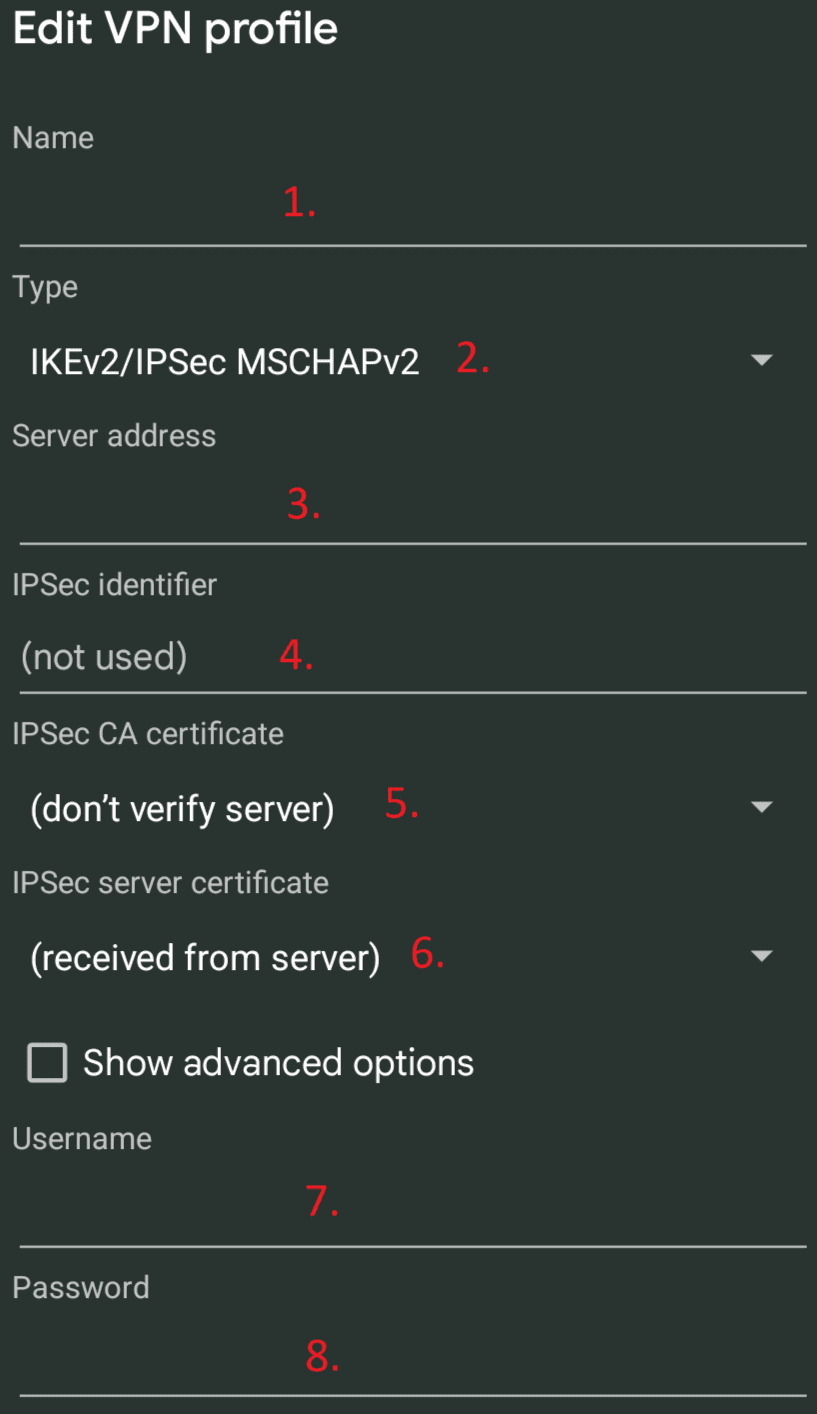
- Name: Enter a name for the profile, such as Windscribe IKEv2.
- Type: Select IKEv2/IPSec MSCHAPv2.
- Server address: Enter the hostname from the IKEv2 Profile Generator.
- IPSec identifier: Enter the generated IKEv2 username.
- IPSec CA certificate: Leave the default option shown. When no custom CA is selected, Android uses its system trust store to validate the server certificate.
- IPSec server certificate: Leave this set to receive the certificate from the server.
- Username: Enter the generated IKEv2 username.
- Password: Enter the generated IKEv2 password.
Save the profile, select it from the VPN list, and connect. If you did not save the credentials with the profile, Android prompts for them when you connect.
iPhone or iPad
- Open Settings > General > VPN & Device Management > VPN.
- Select Add VPN Configuration.
- Complete the fields as follows:
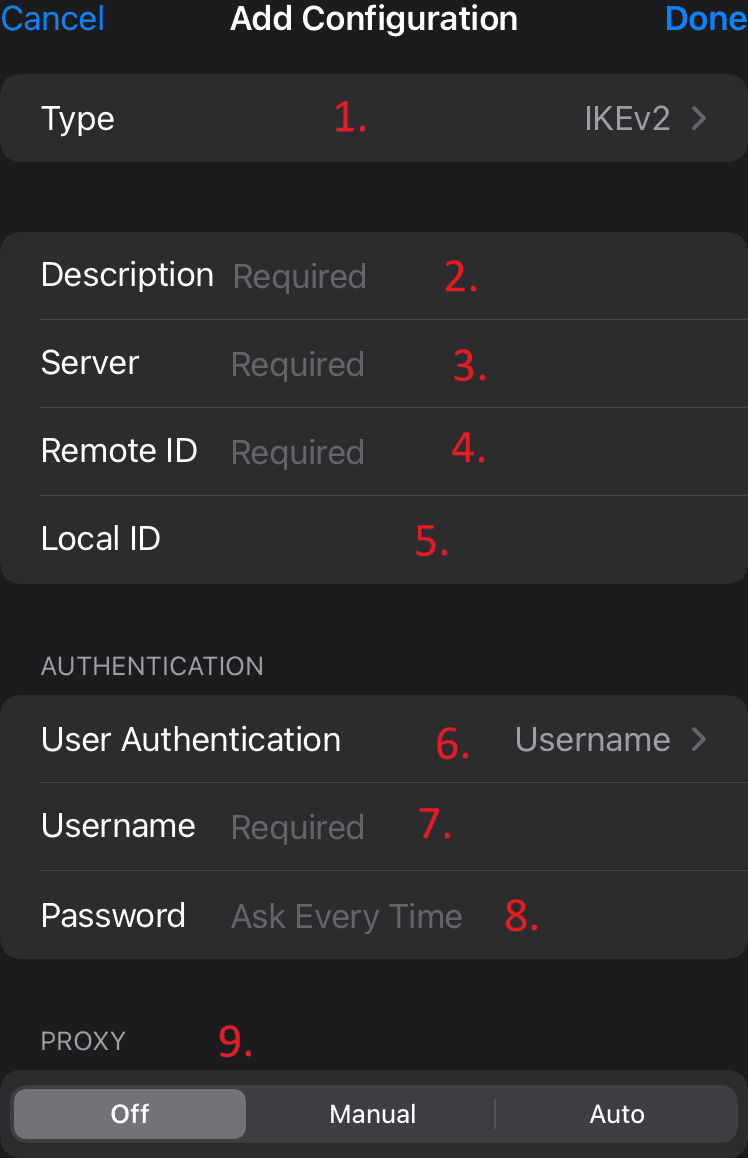
- Type: Select IKEv2.
- Description: Enter a name for the profile, such as Windscribe IKEv2.
- Server: Enter the hostname from the IKEv2 Profile Generator.
- Remote ID: Enter the same hostname again.
- Local ID: Enter the generated IKEv2 username.
- User Authentication: Select Username.
- Username: Enter the generated IKEv2 username.
- Password: Enter the generated IKEv2 password, or leave Ask Every Time selected to enter it whenever you connect.
- Proxy: Select Off unless you specifically need to use a proxy.
Select Done, choose the new Windscribe IKEv2 profile, and turn on the VPN status switch to connect.
If You Cannot Connect
- Confirm that you used the hostname and credentials from the IKEv2 Profile Generator, not your Windscribe account password.
- Check every field for extra spaces or typing errors.
- If your Android menus do not match this guide, search your device manufacturer's support site for its native VPN settings.