

Comment changer l'apparence de l'application de bureau


L'option Apparence de l'application vous permet de personnaliser l'interface graphique de bureau, ce qui modifie la forme de l'application elle-même. Vous pouvez choisir entre 2 options :
Alpha (notre paramètre GUI classique par défaut)
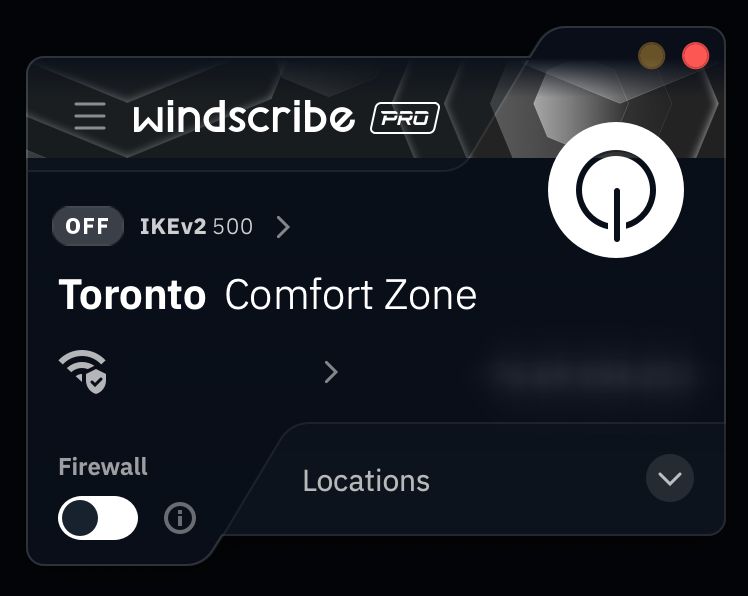
ou
Van Gogh (défini par un design plat et uniforme sans « oreilles »)
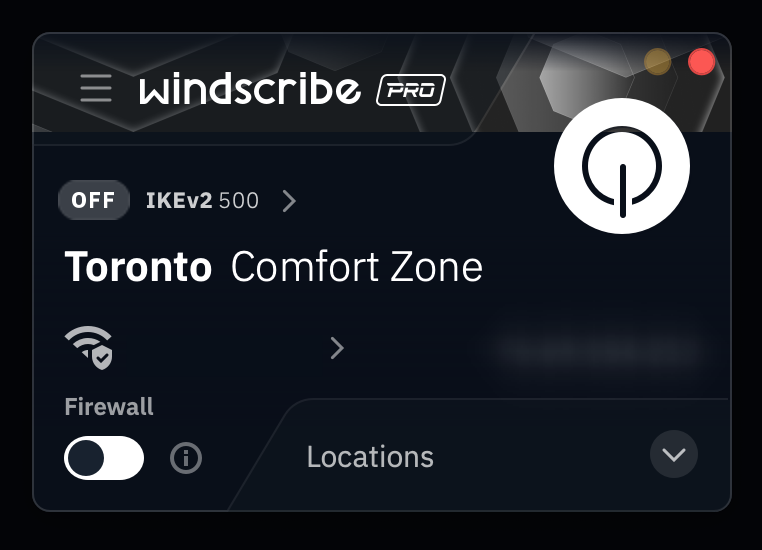
Bien que cette fonctionnalité soit disponible dans l'application depuis un certain temps, elle a été déplacée vers l'onglet Apparence à partir de la version 2.16.11+ de l'application de bureau.
Les étapes
1. Ouvrez les Préférences de votre application Windscribe
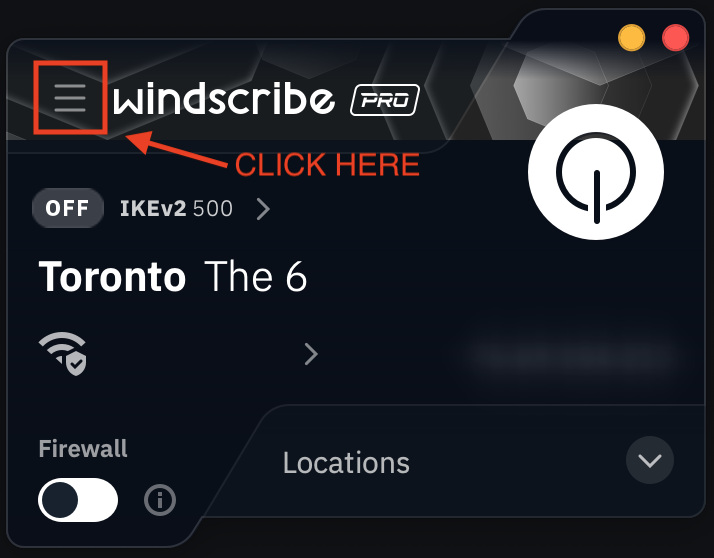
2. Cliquez sur l'onglet Apparence (indiqué par l'icône de pot de peinture) et faites défiler vers le bas jusqu'à l'option Apparence de l'application
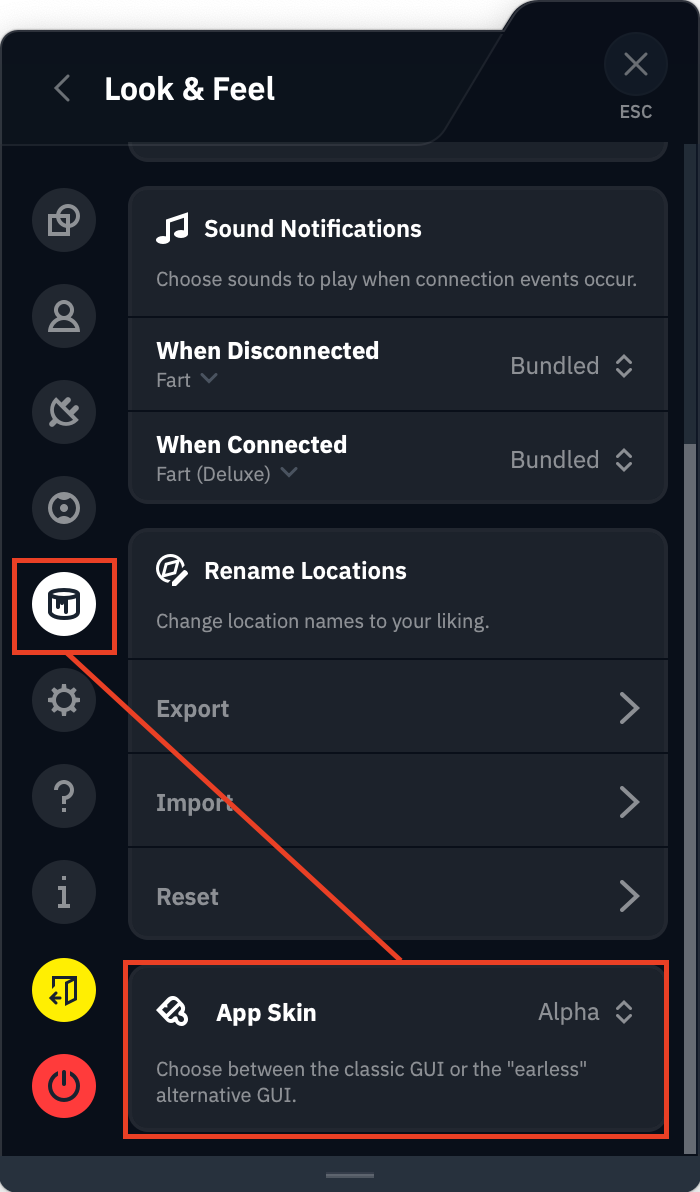
3. Sélectionnez l'une des options Alpha ou Van Gogh
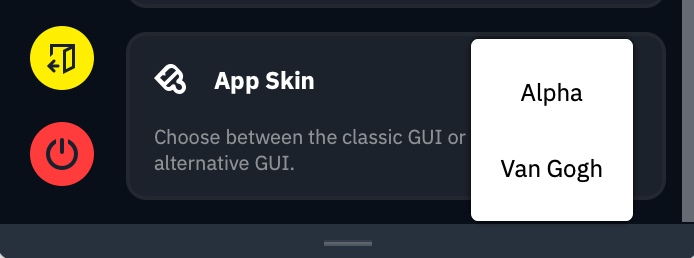
Une fois sélectionné, l'apparence de votre application se mettra automatiquement à jour pour refléter votre choix. Ces paramètres seront sauvegardés à la fermeture.