

Comment ajouter des sons personnalisés aux événements de connexion


À partir des versions 2.16.11 de l'application de bureau, iOS 3.9.1.1 et Android 3.90.1767 de l'application mobile, les utilisateurs peuvent désormais personnaliser les sons que Windscribe émet lors de la connexion et de la déconnexion, en utilisant la section Notifications sonores de l'onglet Apparence & Ambiance.
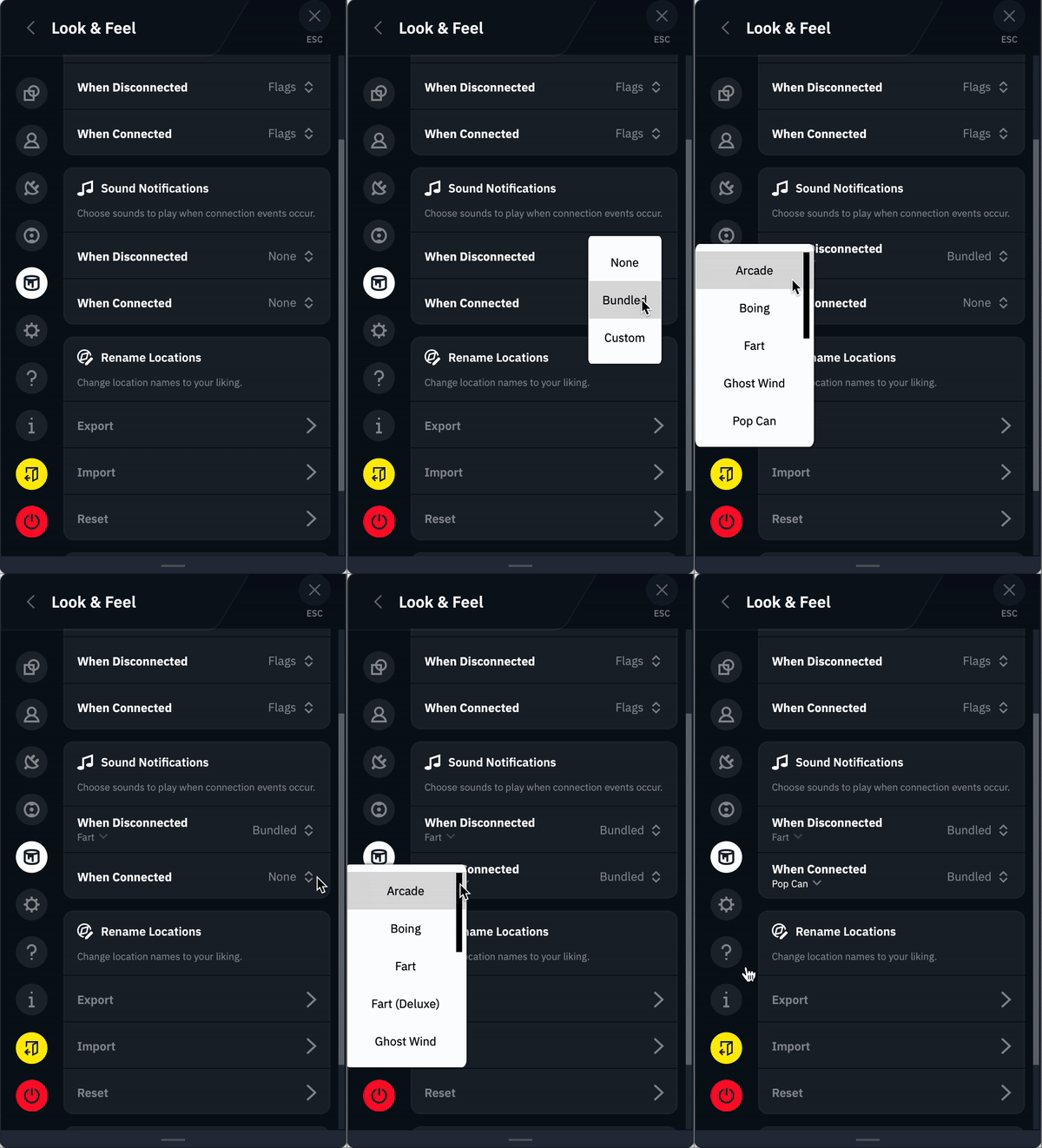
Vous pouvez choisir parmi une collection de sons préchargés, ou télécharger les vôtres (fichiers .wav ou .mp3) pour une personnalisation plus poussée. Vous pouvez sélectionner individuellement un son pour les événements de connexion et de déconnexion pour vous aider à faire la différence :
Les étapes
Ces instructions utilisent la version de bureau de l'application Windscribe
1. Ouvrez les Préférences de votre application Windscribe
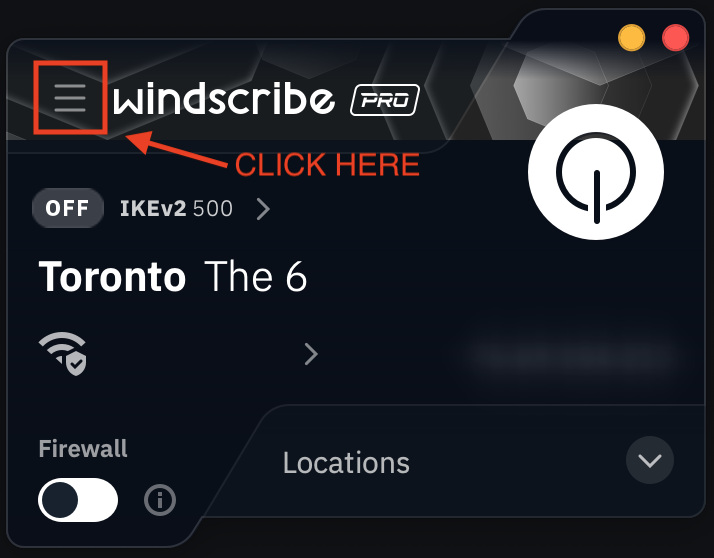
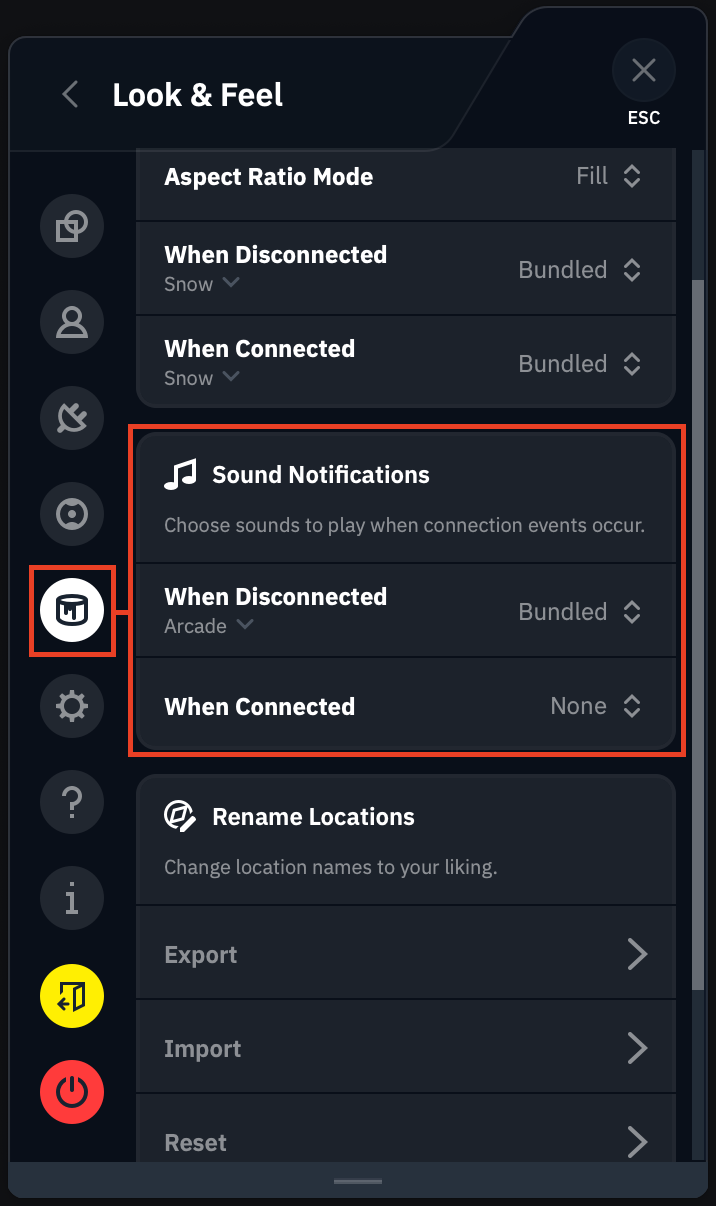
2. Cliquez sur l'onglet Apparence & Ambiance (indiqué par l'icône de pot de peinture) et faites défiler jusqu'à la section Notifications sonores
3. Sélectionnez Personnalisé dans le menu déroulant à droite de l'option À la déconnexion (Vous pouvez aussi sélectionner Inclus pour choisir parmi les options fournies par Windscribe)
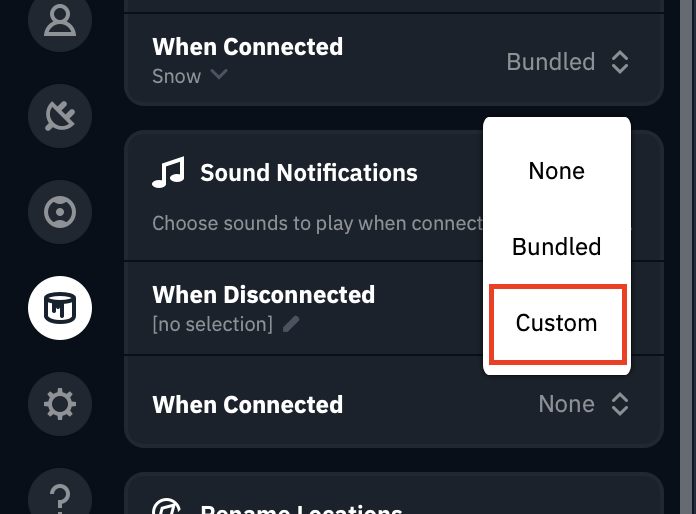
4. Sélectionnez l'icône crayon pour choisir le son que vous souhaitez utiliser parmi les fichiers de votre appareil
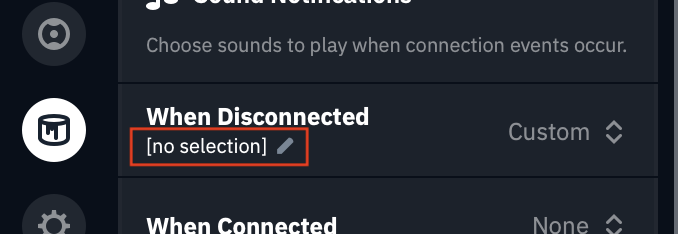
5. Répétez les mêmes étapes pour ajouter un son pour l'option À la connexion également (ou laissez-le vide si vous ne voulez pas les deux sons).
Une fois terminé, vous verrez les noms des deux fichiers sélectionnés affichés aux bons endroits
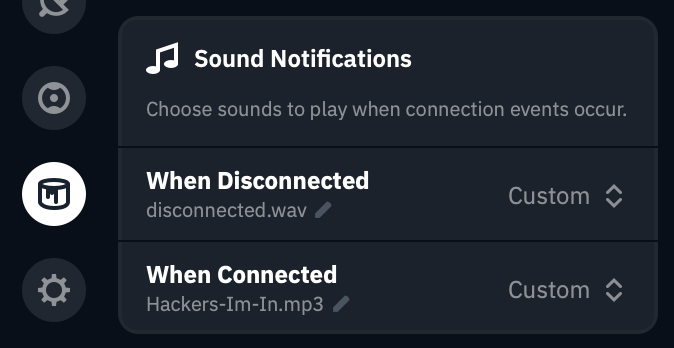
Fermez maintenant le menu et essayez de vous connecter et/ou de vous déconnecter d'un emplacement Windscribe pour entendre les sons que vous avez sélectionnés. Assurez-vous que le volume est monté !