




You peek the corner first, shoot first, and somehow die two steps behind the wall you already cleared. Meanwhile, Discord says you sound like a robot reading a ransom note. You run a speed test: 500 Mbps down, low ping.
That disconnect happens because speed tests measure raw throughput using TCP, which quietly re-requests dropped packets in the background. Games and voice chat use real-time protocols (like UDP) that can’t wait for re-sends. If a packet drops, it’s gone forever. When that happens, your game makes a blind guess about where you are, then snaps you backward when the next update arrives.
That gap between "the speed test says I'm fast" and "the game says I'm teleporting" is where packet loss likes to hide. Let's look for it, narrow down what's contributing, and fix the bits you can actually control.
| What you see | Possible cause | Why |
|---|---|---|
| Rubber-banding, snapping backward | Packet loss | Movement updates arrived late or went missing, so the game corrected its guess |
| Shots that "should have hit" | Packet loss or high latency | Your input arrived late, or not at all |
| Robotic or cut-up voice chat | Packet loss or jitter | Pieces of audio are missing or arriving unevenly |
| Everything is delayed, but smooth | High latency | Data arrives intact, just slowly. Often distance or routing, sometimes congestion |
| Smooth, then a stutter, then smooth | Jitter or bursty loss | Delay or loss is coming in waves |
| Only one game is bad | The game's servers, its route, or game settings | Other apps may be fine, since one game can use a different server or route |
Step 1: Confirm It's Actually Packet Loss
Before you start unplugging things, make sure you're chasing the right problem. High latency, jitter, and packet loss can feel similar in the moment, but they're different measurements and may need different fixes.
Check Your Game's Own Stats
Many games can show live network stats. For that specific game, they're the most relevant evidence you've got because they reflect its direct connection to the game server.
- Fortnite: Turn on "Net Debug Stats" under Settings > Game UI > HUD. You'll see real-time loss and ping once you enter a match.
- Valorant & Shooters: Enable the built-in network graphs in settings to track real-time packet loss percentages during rounds.
- Discord: Click the voice connection details button in the bottom left corner to view inbound and outbound packet loss stats.
If your game lacks a stat overlay, check for anything labeled "net graph," "performance," or "network indicators."
Run an Independent Network Test
In-game stats only tell you about that one server. To check your general connection stability, use an online packet loss test or run a continuous command line ping test (ping -n 100 1.1.1.1 on Windows or ping -c 100 1.1.1.1 on macOS/Linux).
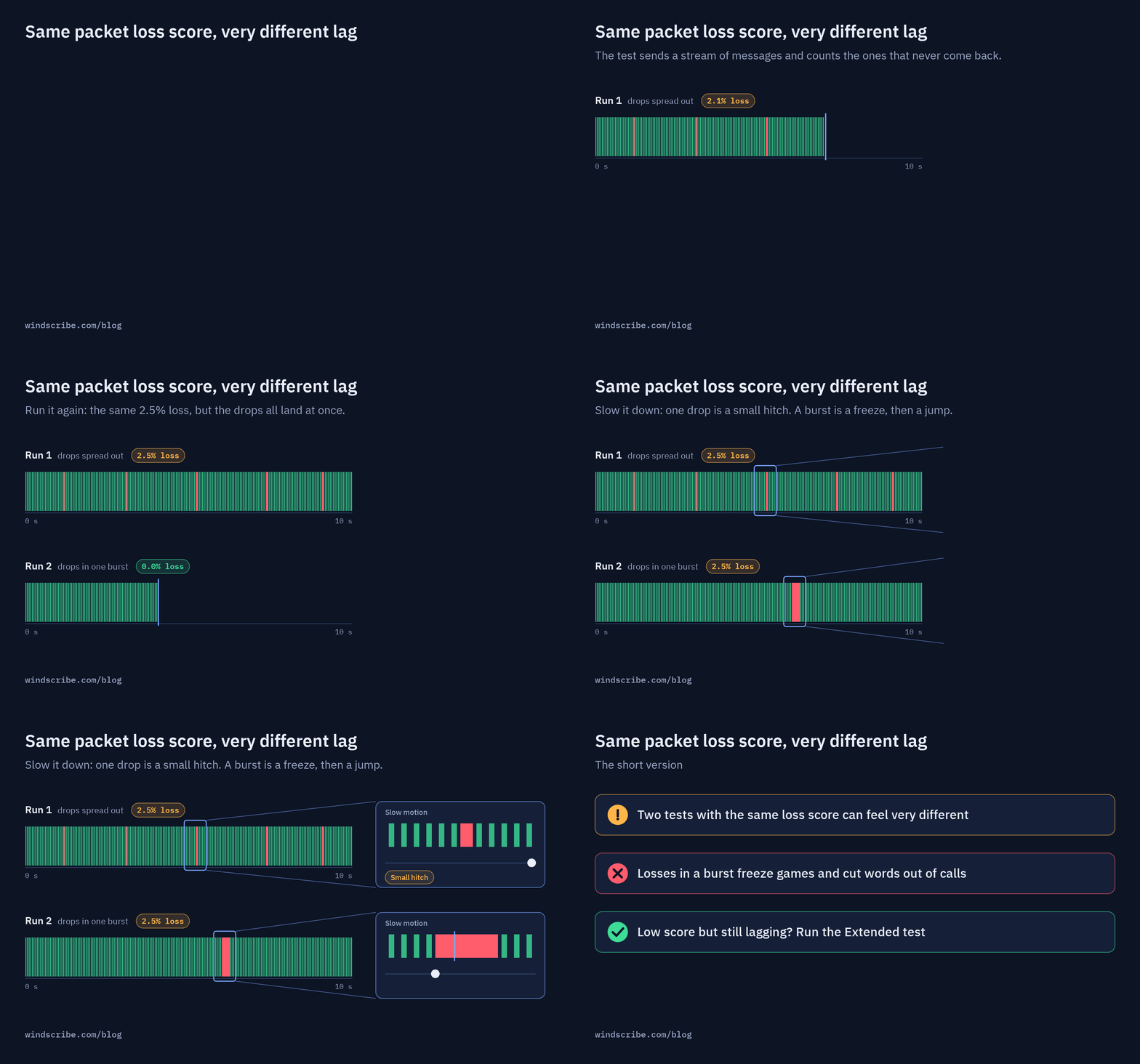
Keep an eye out for clustered bursts: a 0.7% average loss might sound low on paper, but if all those dropped packets hit in the middle of a two-second gunfight, you will lose every time.
Step 2: Find Out Where It Starts
Your traffic takes a long trip: your console or PC, your Wi-Fi or cable, your router, your ISP, several intermediary exchange points, and finally the game server. Packet loss can happen at any stop. Your job is to narrow down where it's getting in.
The Wired Test (The Most Important Step)
Unplug the Wi-Fi and connect your PC or console directly to your router using an Ethernet cable, then test again.
- Loss stops on Ethernet: Wi-Fi interference, signal drops, or local radio congestion was your problem. Jump to Step 3.
- Loss continues on Ethernet: The issue lies outside local Wi-Fi, either your router, your ISP's line, or the path to the game server. Keep troubleshooting.
Gaming on mobile? Compare your home Wi-Fi against your 5G/LTE connection while standing still to rule out local Wi-Fi issues.
Check Local Bandwidth & Background Uploads
A roommate streaming 4K video is usually fine. Heavy uploads, like someone backing up photos to the cloud, torrenting, or uploading video, can completely saturate your router's upload buffer. When the outbound pipe is full, your game’s outgoing packets get queued and delayed or dropped entirely.
Test during peak household hours and test again when the house is quiet. If the quiet run is completely clean, local upload bufferbloat is the culprit.
The Hop-by-Hop Test
If loss persists over Ethernet, diagnostic commands can help inspect the transit route:
| System | Count lost packets | See loss hop by hop |
|---|---|---|
| Windows | ping -n 100 1.1.1.1 | pathping 1.1.1.1 |
| macOS / Linux | ping -c 100 1.1.1.1 | mtr 1.1.1.1 |
Step 3: Fix the Closest Thing First
Work through these in order and re-test after each one:
- Go wired: An Ethernet connection is the single fastest way to eliminate Wi-Fi drops and radio interference.
- Improve Wi-Fi: If you must use Wi-Fi, switch to a 5 GHz band, move closer to the router, and avoid physical obstructions like thick walls or appliances.
- Reboot your networking gear: Power cycle your router and modem. Leave them unplugged for 30 seconds to clear active connection tables.
- Swap the Ethernet cable: Cables can degrade or lose their snap. Try a different Cat5e/Cat6 cable and switch router LAN ports.
- Pause background uploads: Pause cloud syncing services (OneDrive, Google Drive, iCloud) and torrent clients while playing.
- Update router firmware: Outdated firmware can introduce memory leaks and packet drops under sustained loads.
If repeated wired tests continue to show loss, the bottleneck is outside your home: your ISP's transit route or the game host itself.
Discord and Voice Chat: Who's Breaking Up?
Voice chat is a handy two-way diagnostic because it isolates direction:
| What's happening | Possible cause |
|---|---|
| Friends say you sound robotic, but they sound clear to you | Your outbound path is dropping packets (upload congestion, bad Wi-Fi, or outbound ISP route issues). |
| Everyone sounds robotic to you | Your inbound connection is dropping packets or suffering from heavy jitter. |
| Only one friend sounds bad | Their connection or route to the voice server is struggling. Send them this guide. |
| Voice is crystal clear, but the game is unplayable | The game server or its specific route is failing; Discord uses separate servers and routing. |
Will a VPN Fix Packet Loss in Games?
Sometimes, but only if the bottleneck is your ISP's external routing.
A VPN encrypts your traffic and sends it through a secure tunnel, but it cannot repair faulty home cables, interference on your Wi-Fi, or an overloaded game server. However, your ISP routes your traffic through whatever transit paths are most cost-effective for them, which can lead to congested network hops during peak hours.
Connecting to a VPN sends your data directly to a VPN server first, which then hands off your traffic to the game server. If the VPN's route bypasses your ISP's congested transit point, packet loss disappears. If the problem is local or the game server itself is crashing, a VPN will not fix it.
How to Test It Properly
To get an accurate comparison:
- Test with VPN Off: Run three matches or test sessions; record ping, jitter, and packet loss numbers from your in-game stats.
- Connect to Windscribe: Choose a VPN location situated close to the game server's region (not necessarily closest to your house) and set the protocol to WireGuard for optimal speeds.
- Test with VPN On: Run three matches under identical network conditions and compare your results.
| What you see | What it means |
|---|---|
| Loss with VPN on and off | The issue is on your local network, your router, or the game server itself. A VPN cannot bypass it. |
| Loss only with VPN off | Your ISP's default route was congested, and the VPN bypassed the bad transit node. |
| Loss only with VPN on | The selected VPN server, protocol, or port is experiencing congestion. Switch locations or toggle protocols. |
Tuning Windscribe for Games
- Protocol: Keep connection mode set to WireGuard in Preferences > Connection. It offers the lowest latency and overhead for gaming. If your network restricts UDP, test OpenVPN UDP.
- Location Selection: Pick a VPN server physically close to the game server's data center. Sort locations by latency in the app to find the lowest-ping entry point.
- Split Tunneling: Route only your game through the VPN tunnel while keeping your browser or Discord on your standard connection (or vice versa).
- Packet Size (MTU): If packet fragmentation causes drops on VPN connections, adjust Packet Size under Preferences > Connection in the desktop app.
Our Own Catch
A VPN is a network tool, not magic:
- It cannot fix local hardware, bad Wi-Fi, or a damaged cable.
- It introduces slight encryption and routing overhead, which may add a few milliseconds of ping.
- It cannot fix a game server that is struggling under DDoS attacks or server-side lag.
When to Call Your ISP
If you have confirmed packet loss on an Ethernet connection with the VPN disabled, and tests across multiple times of day show repeated drops, call your ISP with hard data:
- Time-stamped test logs showing the percentage and duration of packet loss across different times of day.
- Confirmation that testing was done over a wired Ethernet cable with zero background uploads running.
- In-game network logs showing packet loss matching your network pings.
- Hop-by-hop trace data proving packet drops terminate at your ISP’s local gateway or transit hubs.
Clear logs showing consistent drops will get your ticket escalated past level-1 "restart your router" scripts much faster.

Frequently Asked Questions
Why do I have packet loss when my speed test is normal?
Speed tests measure raw throughput using TCP, which quietly re-requests missing data in the background and hides drops. Games and voice chat rely on real-time UDP traffic that cannot wait for re-sends, turning dropped packets into instant rubber-banding and stutters.
How much packet loss is acceptable for gaming?
Ideally, 0%. Any sustained loss above 1% will cause noticeable hit-registration delays and stuttering during competitive play, and 5% sustained loss renders most online multiplayer games unplayable.
Can a VPN fix packet loss?
A VPN cannot fix bad Wi-Fi, faulty cables, or overloaded game servers. It only resolves packet loss when your ISP’s external routing is congested by rerouting your connection through a different network path.
Why do I sound robotic on Discord?
Robotic audio indicates that voice packets are dropping or arriving out of order (jitter) before reaching the server. This is typically caused by local upload congestion, weak Wi-Fi, or an unstable route to your Discord voice region.
Does Wi-Fi cause packet loss in games?
Yes. Distance, walls, and radio frequency interference from other household devices can cause packets to drop before reaching your router. If packet loss disappears when plugging in with an Ethernet cable, Wi-Fi is the cause.
Is packet loss my ISP's fault?
Not always. If packet loss persists on a wired Ethernet connection with all background uploads paused, and tests show drops across multiple destinations, your ISP's lines or routing nodes are likely responsible.


