



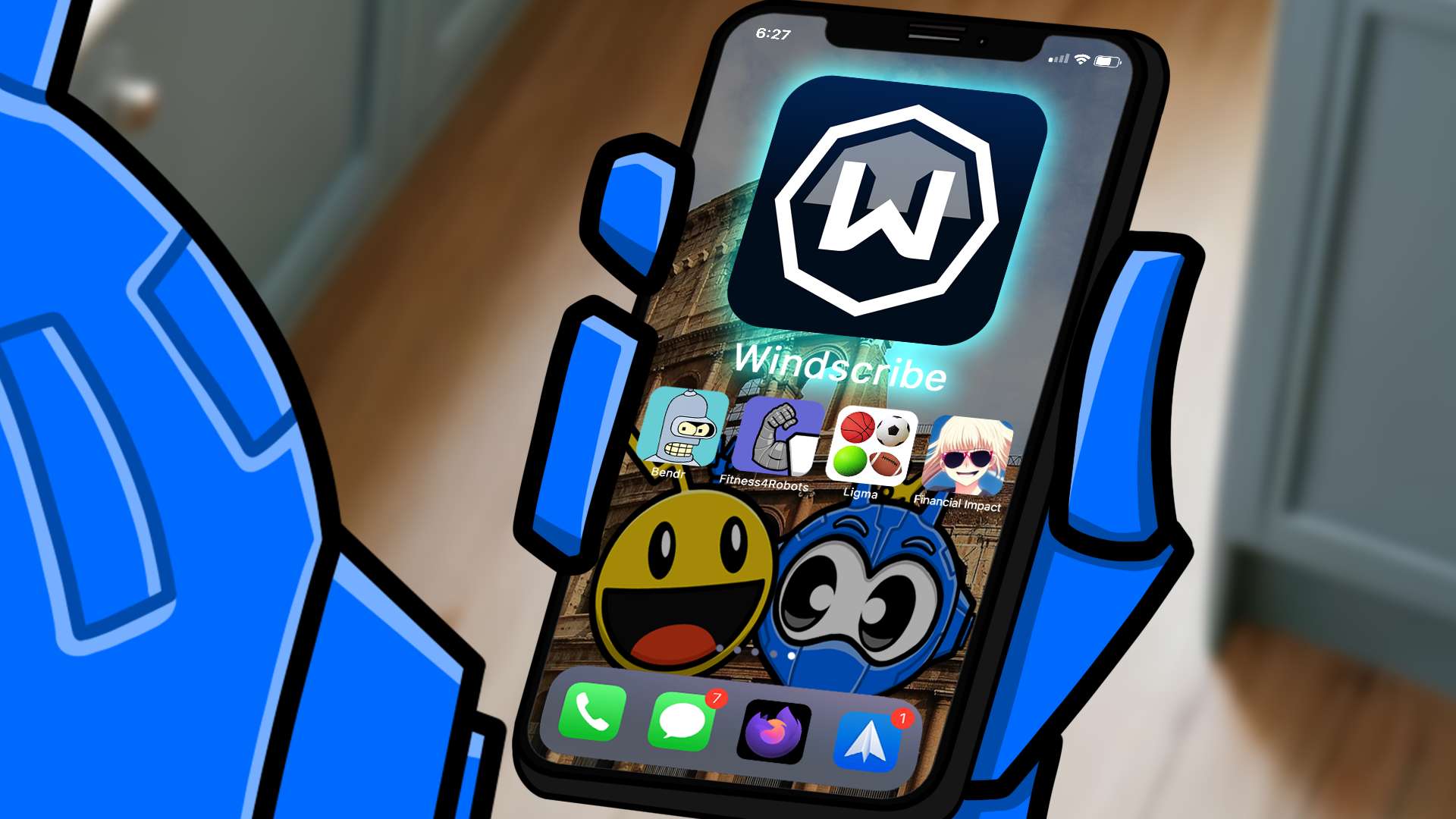
Apple loves to talk about privacy. And to be fair, iPhones and iPads come with some of the best built-in security on the market: Face ID, App Tracking Transparency, Lockdown Mode, the whole lot.
But here's the catch. All of that protects what's on your device. It does very little for what leaves it. Every time your iPhone connects to the internet, your IP address, the sites you visit, and your app traffic are visible to someone, whether that's your mobile carrier, the coffee shop Wi-Fi, or an ad network quietly building a profile on you.
That's the gap a VPN fills. In this guide, we'll cover why using a VPN on your iPhone and iPad is worth it, where iCloud Private Relay falls short, how to set up Windscribe in a couple of minutes, and which settings are worth a tap.
Do You Actually Need a VPN on Your iPhone or iPad?
Short answer: if you ever leave the house with your phone, yes.
Your iPhone goes everywhere you go. It hops between your home Wi-Fi, mobile data, airport networks, hotel Wi-Fi, and that sketchy "Free_Cafe_WiFi" you connected to once and forgot about. Each of those networks is run by someone who can see where your traffic is headed.
An iPad might spend more time on the couch, but the same logic applies. Your ISP can still see every domain you visit, and in many countries it's allowed to log or even sell that data.
What a VPN Does for Your iPhone and iPad
A VPN doesn't make you invisible. What it does is encrypt everything leaving your device and route it through a VPN server. The network you're on only sees scrambled data going to one place, and the websites you visit see the VPN server's IP address instead of yours.
Hides Your IP Address
Every device on the internet has an IP address. It's how websites know where to send data back, but it also reveals your approximate location and works as a handy identifier for anyone tracking you across the web.
When you connect to a VPN, websites and apps see the IP address of the VPN server instead of your own. That makes it much harder for data brokers and ad networks to tie your activity back to you, as long as your VPN provider isn't logging it themselves. (We don't. Our no-logs policy is kind of the whole point.)
Locks Down Public Wi-Fi
Public Wi-Fi is convenient, and that's about all it has going for it. Whoever runs the network, or anyone sitting on it with the right tools, can see which sites you connect to and potentially mess with unencrypted traffic.
A VPN wraps all of your iPhone's traffic in an encrypted tunnel before it ever touches the network. The hotel, airport, or café can see that you're connected to a VPN, and that's it.
Cuts Down on Trackers and Ads
You know the drill. You look up hiking boots once, and suddenly every app on your phone is trying to sell you hiking boots. That's tracking at work: cookies, pixels, and SDKs reporting what you do back to ad networks.
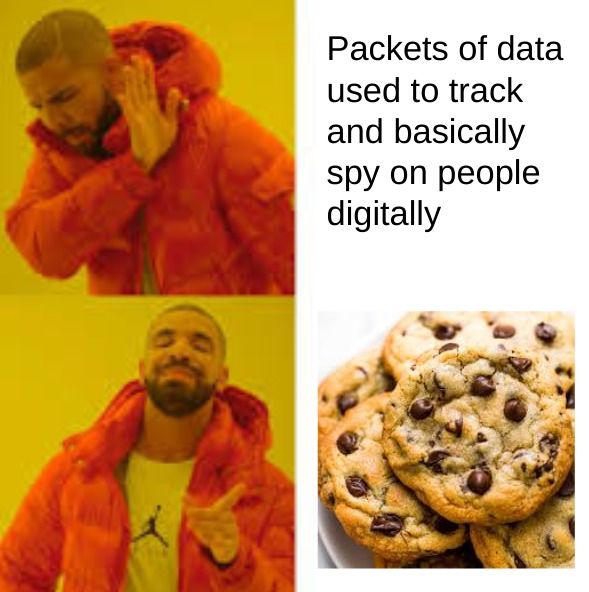
A VPN on its own doesn't delete cookies, but hiding your IP address removes one of the easiest ways to link your activity together. And if your VPN blocks tracking domains at the DNS level, a lot of those trackers never load in the first place.
Saves Mobile Data
If you're on a limited data plan, ads are an expensive hobby. One Enders Analysis study found that ads and trackers made up the majority of the data used to load popular mobile news sites.

Blocking ads and trackers before they download means fewer wasted megabytes, faster page loads, and a little less battery spent on autoplay videos you never asked for.
Gets You Past Geo-Blocks and Network Restrictions
Traveling and your streaming app suddenly forgets where you're from? Stuck on a school or work network that blocks half the internet? A VPN lets you pick a server location, so you can reach your usual content and services from wherever you are.
Isn't iCloud Private Relay Enough?
If you pay for iCloud+, you've probably spotted iCloud Private Relay in your settings and wondered if you need a VPN at all. It's a decent privacy feature, but it's not a VPN.
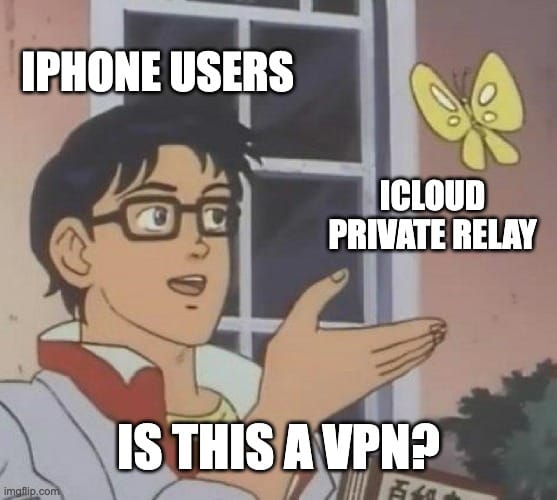
Private Relay mainly covers Safari, plus DNS lookups and some unencrypted app traffic. Most of what your other apps send goes out as normal. You also can't pick a specific country, so it won't help with geo-blocked content, and it isn't available in every region.
A VPN covers your whole device and every app on it, and lets you choose where your traffic exits.
How to Set Up Windscribe on Your iPhone or iPad
Good news: you don't need to dig through settings menus or type in server addresses. The Windscribe app works the same on iPhone and iPad, and the whole thing takes about two minutes.
- Download the app. Open the App Store, search for Windscribe, and tap Get. Or grab it directly from the App Store listing.
- Create an account or log in. Open the app and tap Sign Up, Log In, or Continue with Apple. Add and confirm your email address to bump your free plan from 2 GB to 10 GB per month.
- Connect. Tap the big power button. iOS will ask for permission to add a VPN configuration, so tap Allow and confirm with your passcode. You only have to do this once.
- Pick a location (optional). Open the Locations list, expand a region with the plus button, and tap a server. Or let the app choose the best location for you.
- Disconnect when you need to. Just tap the power button again.
If you'd rather watch than read, let Garry walk you through the whole process in this installation guide:
iOS Settings Worth a Tap
The defaults work great for most people, but a few settings can make Windscribe fit your iPhone or iPad even better.
Protocol
WireGuard is the default for a reason: it's fast and easy on your battery. If a network blocks VPN traffic (think hotel Wi-Fi, office networks, or restrictive countries), switch to Stealth or WStunnel, which disguise your VPN connection as regular web traffic.
Network Options
Mark your home Wi-Fi as trusted and everything else as untrusted, and Windscribe takes care of auto-connecting for you.
R.O.B.E.R.T.
Pick the blocklists you want and add custom rules for domains you want blocked or allowed. Set it once, and it applies everywhere you use Windscribe.
The Bottom Line
Your iPhone and iPad already do a great job of protecting what's stored on them. A VPN takes care of the rest: the traffic leaving your device, the IP address that follows you around, and the trackers trying to piece your life together through ads.
It takes two minutes to set up, runs quietly in the background, and protects every app at once. Windscribe's free plan gives you up to 10 GB a month with the same encryption and no-logs policy as our paid plans, so you can try it on both devices without paying a cent.

Frequently Asked Questions
Should you use a VPN on an iPad?
Yes, especially if you use it on public or shared Wi-Fi, travel with it, or just don't want your ISP seeing your browsing. iPads face the same network-level risks as iPhones; they just tend to leave the house less. The Windscribe app works the same way on both.
Does the iPhone or iPad have a built-in VPN?
Not as a service. iOS has a built-in VPN client (Settings > General > VPN & Device Management) where you can add a manual configuration, but you still need a VPN provider's servers to connect to. iCloud Private Relay is the closest thing Apple offers, but it mostly covers Safari and isn't a full VPN.
What is the downside of using a VPN on iPhone?
A VPN can slightly reduce your speed and use a bit more battery, since your traffic is encrypted and routed through another server. Some apps, like certain banking or streaming apps, may also push back on VPN connections. Picking a nearby server and sticking with WireGuard keeps the speed and battery hit small.
Can I use the same VPN on my iPhone and iPad?
Yes. With Windscribe, you just log in to the same account on both devices, and you can use them at the same time.
Can I use a VPN on iPhone for free?
Yes. Windscribe's free plan gives you 2 GB per month without an email, or 10 GB per month once you add and confirm one. Just be wary of free VPNs that don't explain how they make money, because the answer is often your data.
Should my VPN be on or off on my iPhone?
On, ideally, whenever you're on a network you don't control. Plenty of people just leave it on all the time. If an app acts up while you're connected, try a different server or protocol before switching the VPN off.
Why does my iPhone say network activity may be monitored when I add a VPN?
iOS shows this message whenever you add any VPN configuration, because a VPN technically can see the traffic routed through it. It's a standard warning, not a sign that something's wrong. With a no-logs VPN like Windscribe, nothing identifying gets stored.
Why is my VPN not working on my iPhone?
Try a different server location first, then switch protocols (Stealth or WStunnel help a lot on restrictive networks). If that doesn't fix it, make sure the app is up to date and your device runs iOS 15 or later, or reinstall the app.


