




So, you’re planning on using a VPN? We approve. In 2026, using the internet without a VPN is a bit like walking through a crowded mall with your social security number taped to your forehead.
Your online privacy matters now more than ever, mostly because “they” are constantly finding new ways to monetize and leverage your data.
A VPN is essentially a cloak for your digital life. It creates a private tunnel for your data, making you invisible to hackers, snooping ISPs, and those creepy ads that follow you around after you look at a toaster once.
The best part is that anyone can use a VPN on their devices. If you can install an app and click a giant ON button, you’ve already mastered the hard part.
In this guide, we’ll talk about how to use a VPN, what a VPN even does, and how to use it to its fullest potential.
How to Use a VPN in 4 Simple Steps
We’ll assume you want to use Windscribe. Here’s how to get started in 4 simple steps:
- Sign up for free: Go to windscribe.com/signup and create your account. Start for free, no credit card required, with 10GB of data per month.
- Download the VPN app: Visit windscribe.com/download and install the app for Windows, Mac, iOS, Android, or your browser.
- Pick a server: Open the app, log in, and select a location from the menu. Use Best Location to connect to the fastest server near you automatically.
- Connect and browse: Click the power button. Once it turns green and the shield icon appears, your connection is encrypted, and your IP address is hidden.
And voilá! You’re now successfully using the Windscribe VPN.
What Does a VPN Actually Do? (30-Second Explainer)
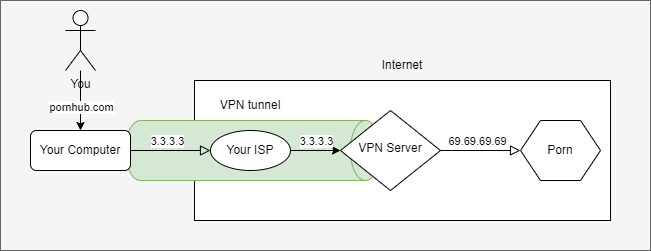
In short, a VPN creates a secure, encrypted tunnel between your device and a remote server. When you hit connect, your internet traffic is instantly scrambled into gibberish that your ISP can't read, your real IP address is hidden from the sites you visit, and your virtual location is swapped to wherever that server is located. That one change is what unlocks the wider benefits of using a VPN, from blocking trackers to sidestepping ISP throttling.
Think of it like sending your mail through a private, sealed tunnel instead of on an open postcard.
Without a VPN, your internet traffic is visible to anyone handling it. With one, your data is locked in an armored vault until it reaches its destination. This keeps your actual identity and home address safely behind the curtain.
And besides encrypting your connection, there are some other cool things you can do with a VPN, like changing your virtual location to New York City while you’re sitting at your desk in Toronto, avoiding ISP throttling, torrenting stuff safely, and so on. We’ll talk about all that later! Worth knowing before you pick one: the app you download is a personal VPN, and there are several types of VPN built for completely different jobs.
How to Choose the Right VPN
“Best VPNs in 2026” lists that shout the same names from the rooftops over and over again can’t be trusted. They’re usually biased by the massive commission fees some VPN providers pay to sit at the top of the list. So, if you can't trust the "Top 10" articles, what should you actually look for?
What to Look For in a VPN
When you're shopping around, think of these six features as your non-negotiables. If a VPN is missing even one of these, it’s probably a good idea to look elsewhere:
Audited No-Logs Policy
Every VPN claims it doesn’t log your activity. The real question is whether they can prove it. Look for third-party audits or real-world legal cases showing they had no data to hand over. Windscribe’s no-logs policy has held up in court because there were no logs to give.
Strong Encryption
A good VPN should use AES-256 or ChaCha20. Anything weaker is not worth trusting. If a provider is vague about its encryption, that is your cue to leave.
A Reliable Kill Switch
If the VPN drops, a kill switch cuts your internet so your real IP does not leak. Even better is a proactive Firewall, like Windscribe’s, which blocks traffic outside the tunnel entirely instead of waiting for a disconnect.
Server Network & Locations
More servers usually means less congestion and better speeds. You also want locations in the places you actually need. Windscribe has servers in 69+ countries and 115+ cities, so a fast nearby connection is usually within reach.
Multi-Device Support
A good VPN allows multiple simultaneous connections across all your gear. We’ve got an app for every device (Windows, Mac, Linux, iPhone, Android, Smart TVs) and browser extensions.
Modern Protocols
Look for WireGuard. It’s the best all-around protocol for speed and security in 2026. Windscribe also offers six protocols for different situations, including Stealth for restrictive networks and IKEv2 for mobile stability.
Free vs Paid VPNs: The Honest Breakdown
Yes, free VPNs are tempting. But remember that when something is free, you’re usually paying with your data.
Most free VPNs not only have painfully low data caps and excruciatingly slow speeds, but they also log your data, sell it to advertisers, and show you a shit ton of ads.
In fact, a study by CSIRO found that over 60% of free VPNs in app stores have been caught selling user data, and nearly 38% of them contain some form of malware.
When a service is "free" but has no clear way to pay its server bills, it usually means your browsing habits are the product being sold.
But “don’t use free VPNs” doesn’t mean you need to commit to a three-year plan right away. If you're still on the fence, we wrote an honest answer on whether VPNs are worth it, rather than the usual sales pitch.
At Windscribe, we offer a free plan that gets you 10GB of data per month (which is a lot for casual browsing), no ads, the same encryption as our paid plan, and access to 11 server countries, all with a strict no-logs policy.
So, what’s the catch? There isn't one. Our free tier is simply funded by our Pro users, not by selling your soul to advertisers.
 Yegor Sak
How to Use a VPN on Every Device
While the behind-the-scenes tech is the same, how you actually flip the switch depends on what you’re holding in your hand.
We’ve built Windscribe to be as plug-and-play as possible across every platform. Here’s how to get protected on your specific device.
How to Use a VPN on Windows
Windscribe on Windows is a set-it-and-forget-it tool. It sits in your system tray, ready to shield your entire PC at a moment's notice.
- Grab the installer from windscribe.com/download. It takes under 2 minutes.
- Launch the app and enter your credentials.
- Click the large Power Button. When it turns green, you’re encrypted.
Pro tip: Right-click the Windscribe icon in your system tray (near the clock) to swap server locations without even opening the main app.
How to Use a VPN on Mac
The Mac app is sleek and integrated, but macOS has one extra security gate you’ll need to open during the first setup.
- Download the app from our site here: windscribe.com/download.
- When you first hit Connect, macOS will ask to "Allow VPN Configurations." Click "Allow." This is a one-time requirement for the tunnel to work.
- Choose a location and hit the power button.
How to Use a VPN on iPhone/iOS
- Download Windscribe from the App Store.
- Tap Connect. iOS will prompt you to "Allow" VPN settings. Use your Face ID or Passcode to confirm.
- Enable Auto-Connect in the settings so your iPhone automatically connects to the VPN.
Pro tip: For the best battery life on the go, go to Preferences > Connection and select the IKEv2 protocol.
How to Use a VPN on Android
- Get the app from the Google Play Store.
- Tap Connect and hit "OK" when the "Connection request" dialog appears.
- Toggle on “Always On” in Settings > Network > VPN.
Pro tip: Use WireGuard for better speeds and more efficient battery life.
How to Use a VPN on Chrome (Browser Extension)
Our browser extension is ideal for Chromebooks or quick location-hopping. This only encrypts your browser traffic.
- Add Windscribe from the Chrome Web Store.
- Click the icon in your toolbar and log in.
- Toggle the switch to On.
How to Use a VPN on Linux
- Use our repositories to install the client (available for Ubuntu, Debian, Fedora, and CentOS).
- Connect via GUI: Open the app, log in, and click connect just like on Windows.
- Connect via CLI: Type windscribe-cli login and then windscribe-cli connect connect into your terminal.
Need specific commands? Check our Linux Setup Guide.
How to Use a VPN on Smart TVs & Gaming Consoles
It depends on what TV you have. If you’re on Fire TV & Android TV, you can download the Windscribe app directly from the Amazon Appstore or Google Play Store on the device. Log in and tap connect.
For Apple TV, you can find in the App Store and download directly. Then sign in to your account, pick a location and connect.
Roku, Samsung & consoles don't support native VPN apps, so you have two choices:
- Option A: Set up Windscribe on your router to protect every device in the house.
- Option B: Use our Control D DNS service for simple location switching.
Follow our Router Setup Guide for a step-by-step home network overhaul.
VPN Settings You Should Configure
Once that green ON button is glowing, you’re officially using a VPN correctly. But to get the most out of your connection, you can tweak a few key settings that move you from "just connected" to "fully optimized."
Kill Switch
If your VPN connection drops for even a fraction of a second, perhaps due to a flickery Wi-Fi signal, the Kill Switch instantly blocks all internet traffic to prevent your real IP address from leaking into the wild. At Windscribe, we take this a step further with our built-in Firewall.
You can find this under Settings > Connection > Firewall Mode. We recommend leaving it on "Always On" so no data ever spills onto an unencrypted network.
Split Tunneling
Sometimes you want the best of both worlds: total privacy for your browser, but a direct, local connection for your banking app or a high-speed game. You can achieve that with Split Tunneling. Available on Windows, Android, and Mac, this Windscribe feature allows you to hand-pick which apps bypass the VPN and which stay protected.
You can configure this in Settings > Connection > Split Tunneling. It’s the perfect solution for using location-sensitive services (like your local bank) without having to disconnect your VPN and expose the rest of your device.
VPN Protocols
Think of protocols as the engine under the hood of your VPN. While we recommend leaving your settings on automatic mode to let the app choose the best path, you can manually switch them in the connection menu.
WireGuard is the gold standard for 2026, and it’s the one you should be using. If you’re on an iPhone or switching between Wi-Fi and 5G, IKEv2 offers the best battery life and stability. For those in restrictive countries where VPNs are blocked, our Stealth protocol adds a layer of obfuscation to make your VPN traffic look like regular web browsing.
R.O.B.E.R.T.
R.O.B.E.R.T. is Windscribe’s personal bouncer: it blocks ads, trackers, malicious domains, and unwanted content at the DNS level. And the best part is that you can customize exactly what gets through.
You can toggle off entire categories like malware, ads, and trackers, or get granular by blocking social media trackers, gambling sites, pornography, or even cryptominers. This level of control removes the online crap you don’t want to see and makes your connection feel faster by stopping junk data from loading in the first place.
What Can You Do With a VPN? (Top Use Cases)
Besides encrypting your connection to hide your data from your ISP and internet snoops, there are other cool things a VPN lets you do.
Secure Public Wi-Fi
Public Wi-Fi in coffee shops, airports, and hotels is notoriously insecure and a playground for hackers. A VPN creates an encrypted shield around your traffic, ensuring that anyone else on the same network is blocked from intercepting your passwords or personal data.
Stream Content From Other Regions
If your favorite show isn't available in your current country, you can simply connect to a server where it is. A VPN lets you swap your virtual location and access different streaming libraries from around the world. Just remember to always respect your streaming service's Terms of Service.
Avoid ISP Throttling
Some internet providers intentionally slow down your connection if they detect heavy activities like gaming, torrenting, or 4K streaming. Because a VPN hides the type of traffic you’re consuming, your ISP can’t selectively throttle you, ensuring you get the speeds you actually paid for.
File-share Safely
When you share files online, your IP address is typically visible to everyone else in the torrent swarm. Using Windscribe’s P2P-friendly servers hides your real identity from peers and keeps your activity private from your ISP. If the term itself is new to you, what a P2P VPN actually is unpacks the three different things people means by it.
Save Money on Shopping and Travel
Airlines and retail sites often show different prices based on your geographic location or browsing history. By clearing your cookies and switching your VPN server to a different city or country, you can compare prices and often snag a better deal on flights and hotels.
Bypass Censorship and Firewalls
In countries with restricted internet or on strict school and work networks, certain websites are often blocked. Windscribe’s Stealth protocol is specifically designed to bypass these blocks, making your VPN traffic look like regular web browsing so you can access the open internet from anywhere.
How to Check If Your VPN Is Working
Even with the green light on, your real identity can still leak through technical side doors like your IP address (your digital home address), DNS (the phonebook that tells your ISP which websites you’re visiting), and WebRTC (a browser feature for video chats that can accidentally reveal your true location).
So, how do you make sure this doesn’t happen? You can run a quick diagnostic to see if your tunnel is truly air-tight. Here are the three essential tests to ensure you're actually as invisible as you think you are:
| Test | Tool | What You Should See | What Shouldn't Be Showing | Why This Matters |
|---|---|---|---|---|
| IP Check | Windscribe IP Tool | An IP address and map location matching your chosen VPN server. | Your real IP address, actual home city, or ISP name. | If this fails, you aren't masked. Sites still know exactly where you are sitting. |
| DNS Leak | Windscribe DNS Test | Only Windscribe servers listed. (Always run the "Extended Test"). | Your ISP's name appearing in the results. | If your ISP shows up, they can still see every website you visit, even if the "content" is encrypted. |
| WebRTC Leak | BrowserLeaks.com | "No leak" or an IP address that matches your VPN server. | Your Local/Private IP (usually starts with 192.168.x.x) or real Public IP. | WebRTC is a "snitch." It can bypass the VPN tunnel to show your real identity to any website you visit. |
Common VPN Problems and How to Fix Them
Even the best VPNs have their bad days. Technology is fickle, and sometimes your encrypted tunnel acts more like a congested subway line during rush hour. The good news? You don’t need to call IT or perform a ritual sacrifice to fix it. Most VPN tantrums can be settled in under thirty seconds by toggling a single setting or teleporting your virtual self to a different country.
VPN Won’t Connect
If the big friendly power button refuses to light up, start by switching to a different server. If that does nothing, go to Settings > Connection and change the protocol manually. Some networks are allergic to VPN traffic, so if you’re stuck behind an especially hostile firewall, Stealth usually sneaks through. And yes, the good ol’ ritual of restarting the app can still be the best fix.
Slow Connection Speeds
Distance is the primary enemy of speed. Pick a server closer to where you actually are. Make sure you’re using WireGuard, since it’s usually the fastest option. Also, check that you don’t have some random proxy or browser VPN extension fighting your main VPN in the background. People often stack the two, because of a speed myth. It's worth knowing if a VPN or a proxy is faster, so if you want to know whether the VPN is actually the problem, disconnect and run a speed test on your normal connection first.
Can't Access a Streaming Service
Streaming platforms constantly play a game of cat-and-mouse by blocking known VPN IP addresses. If your favorite show won't load, simply disconnect and try a different server in the same country to get a fresh IP. You can also try clearing your browser cookies to ensure the site isn't remembering your real location from a previous visit.
VPN Keeps Disconnecting
A flickering connection is usually a sign of unstable Wi-Fi or an aggressive local firewall. To stay protected during these micro-drops, make sure your Firewall Mode is set to Always On so your data never leaks into the wild. If you’re moving between mobile towers or switching from 5G to Wi-Fi, try using the IKEv2 protocol, as it’s specifically designed to handle network changes without dropping the tunnel.
Websites or Apps Won't Load
Not all websites like VPNs. In fact, certain highly secure websites, like banking portals or government apps, occasionally block all known VPN traffic for security reasons. Instead of turning your VPN off completely, use Split Tunneling to exclude just that app or site. That way, the annoying service gets your normal connection, and everything else stays protected.
When You Might NOT Need a VPN
We’re a VPN company, so it may seem weird for us to tell you that there are some situations where you don’t actually need a VPN. We’d like you to use one 24/7, sure, but that’s not always necessary or convenient. And we’d rather be honest. A VPN is a powerful tool, but like any tool, knowing when NOT to use it is just as important as knowing how. We went through should your VPN be on or off case by case in its own guide.
Banking and Financial Apps
Banks are notoriously jumpy, which is why using a VPN for online banking takes a little setup. If you suddenly log in from Switzerland while your physical card is being swiped at a grocery store in Toronto, their fraud detection might freak out and lock your account. To avoid the headache of calling customer service to prove you haven't been hacked, it’s often easier to disconnect your VPN or use Split Tunneling to let your banking app use your direct, local connection.
Competitive Online Gaming
If you’re playing a high-stakes ranked match where every millisecond counts, a VPN can be a literal pain in the ass. Because your data has to travel to our server before hitting the game server, it adds latency (ping). While our speeds are top-tier, physics is a stubborn opponent, though how a VPN affects your ping while gaming depends heavily on how your ISP routes you. If you’re on a trusted home network and need the absolute lowest latency possible, you’re better off gaming without us.
Local Network Devices
A VPN is designed to hide your device, which is great for privacy, but terrible if you're trying to find your wireless printer, a smart lightbulb, or a NAS drive in your own house. Because the VPN makes your computer think it's in a different data center, it might lose sight of the devices sitting three feet away from you.
You can usually fix this by enabling "Allow LAN Traffic" in our settings, but if you’re just trying to print a 50-page document, turning the VPN off for a moment is the path of least resistance.
Trusted Private Networks
If you’re at home, using a modern WPA3-encrypted Wi-Fi connection, and you aren't currently worried about hiding your location or bypassing a filter, you might not need a VPN that much. While it still provides a layer of privacy from your ISP, the overhead of encryption can slightly impact speeds for high-bandwidth tasks. If you trust your network and your ISP, you’re fine without a VPN.
Frequently Asked Questions About Using a VPN
Is it legal to use a VPN?
In the vast majority of the world, including the U.S., UK, Canada, and the European Union, using a VPN is 100% legal. It’s your right to protect your privacy. However, a few countries like China and Russia heavily regulate them, while places like North Korea and Turkmenistan have banned them outright. Always give the local laws a quick Google if you’re traveling to a high-censorship region, and remember: a VPN doesn't make illegal acts legal; it just makes your connection private.
Can you be tracked while using a VPN?
A VPN is a massive shield, but it isn't an invisibility cloak. While it hides your IP address and scrambles your traffic so your ISP can’t snoop, you can still be tracked if you log into your Google account, accept every cookie a website throws at you, or leave a massive digital fingerprint through your browser settings. For the best defense, pair your VPN with our R.O.B.E.R.T. tracker blocker and use our browser extension to enable Anti-Fingerprinting.
Are free VPNs safe?
Absolutely not. If a company isn't charging you money, they’re almost certainly charging you in data. Many free VPNs have been caught selling browsing histories to advertisers or even containing malware. So, if you're wondering whether free VPNs are safe, the answer is no. Instead of using a free VPN, just go for Windscribe’s free tier. We use the same encryption and no-logs policy as our paid plans. Our free tier is funded by our Pro subscribers, not by selling your soul to a data broker.
Does a VPN slow down my internet?
Technically, yes, but you usually won't notice. Because your data has to be encrypted and routed through a remote server, there’s a tiny bit of travel time added. On a solid connection using the WireGuard protocol, you might see a 5-15% dip in speed. On the flip side, if your ISP is intentionally throttling your Netflix stream, a VPN can actually make your internet faster by hiding what you're doing from their speed-limiters.
Can I use a VPN on multiple devices?
With Windscribe, the answer is a resounding yes. Our paid plans allow for unlimited simultaneous connections, meaning you can protect your phone, laptop, tablet, and your fridge (if it’s smart enough) all at once. Even our free plan works across unlimited devices, though they will all share that 10GB monthly data allowance.
Do I need a VPN at home?
It depends on how much you trust your ISP. Even at home, your ISP can log every website you visit and sell that data to advertisers. If you don't like the idea of your ISP building a profile on your browsing habits or hijacking your DNS, then keeping the VPN on at home is a smart move. If you only care about security on shady networks, you can just toggle it on when you head to the local coffee shop.
How do I turn off a VPN?
Don’t! But if you must… Just open the Windscribe app and click the big Power icon. The status will switch to Disconnected, the green glow will disappear, and your internet connection will immediately revert to your normal, ISP-provided IP address. Just remember that the moment you do this, your armored tunnel is gone!
What's the difference between a VPN app and a VPN browser extension?
Think of the VPN app as a whole-house security system: it encrypts every single bit of data leaving your device, from your browser to your Spotify app and Zoom calls. The browser extension is more like a lock on a single door; it only protects the traffic happening inside that specific browser. Use the app for total protection and the extension for quick, lightweight location-swapping, or on devices like Chromebooks.


