



So, you want to turn off the VPN on your iPhone? No problem. Whether you just need to disconnect it temporarily or remove it entirely, there are a couple of quick ways to do it.
In this guide, we’ll walk through both options step by step, straight from iOS settings or directly inside your VPN app.
Method 1: Turn Off the VPN Through iPhone Settings
If you want the simplest, most universal option, this is it. Turning off your VPN through iPhone Settings works no matter which VPN app you’re using, because you’re disconnecting the VPN at the iOS level.
Here’s how to turn off the VPN through the iPhone settings:
- Open Settings or General.
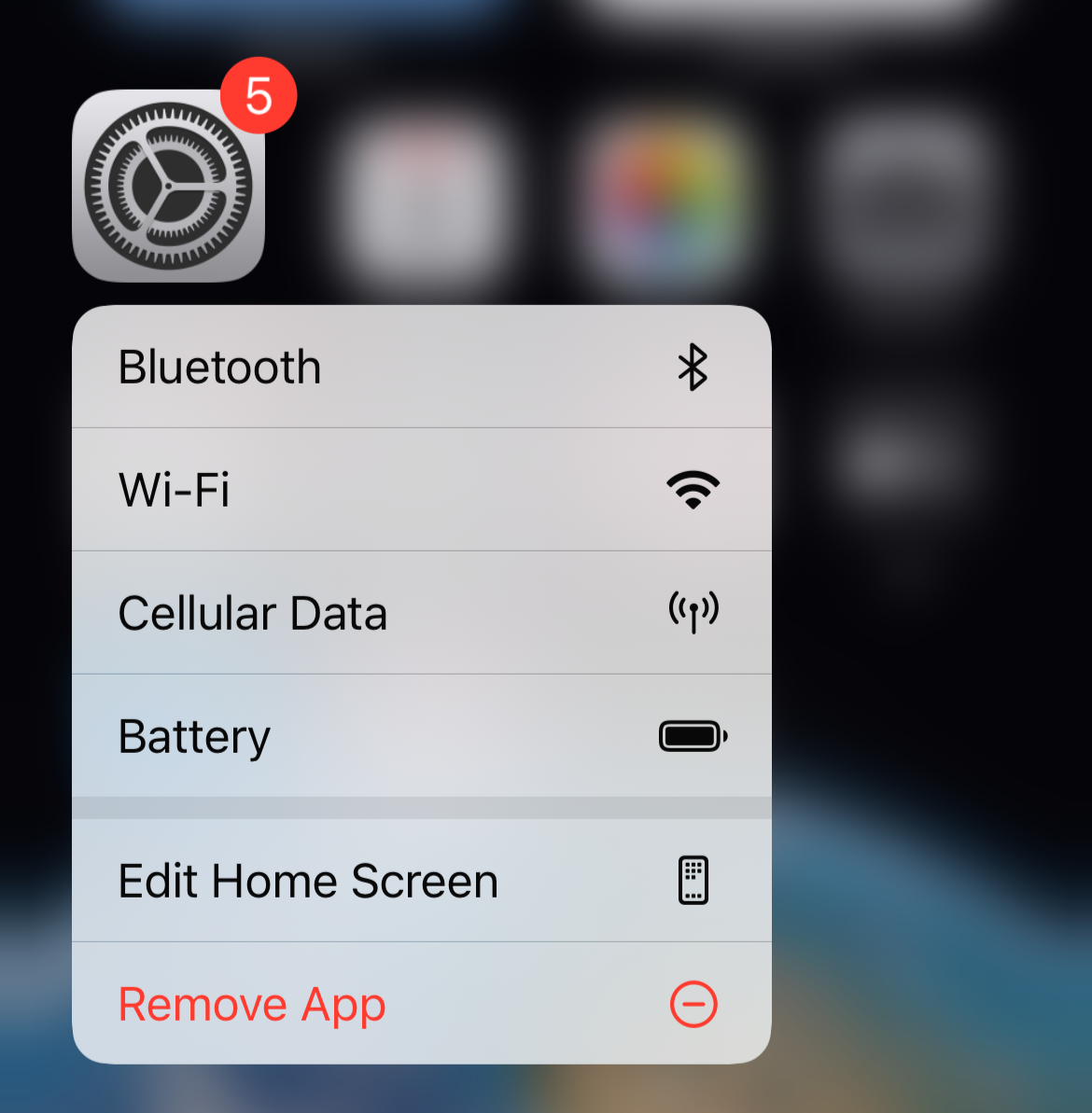
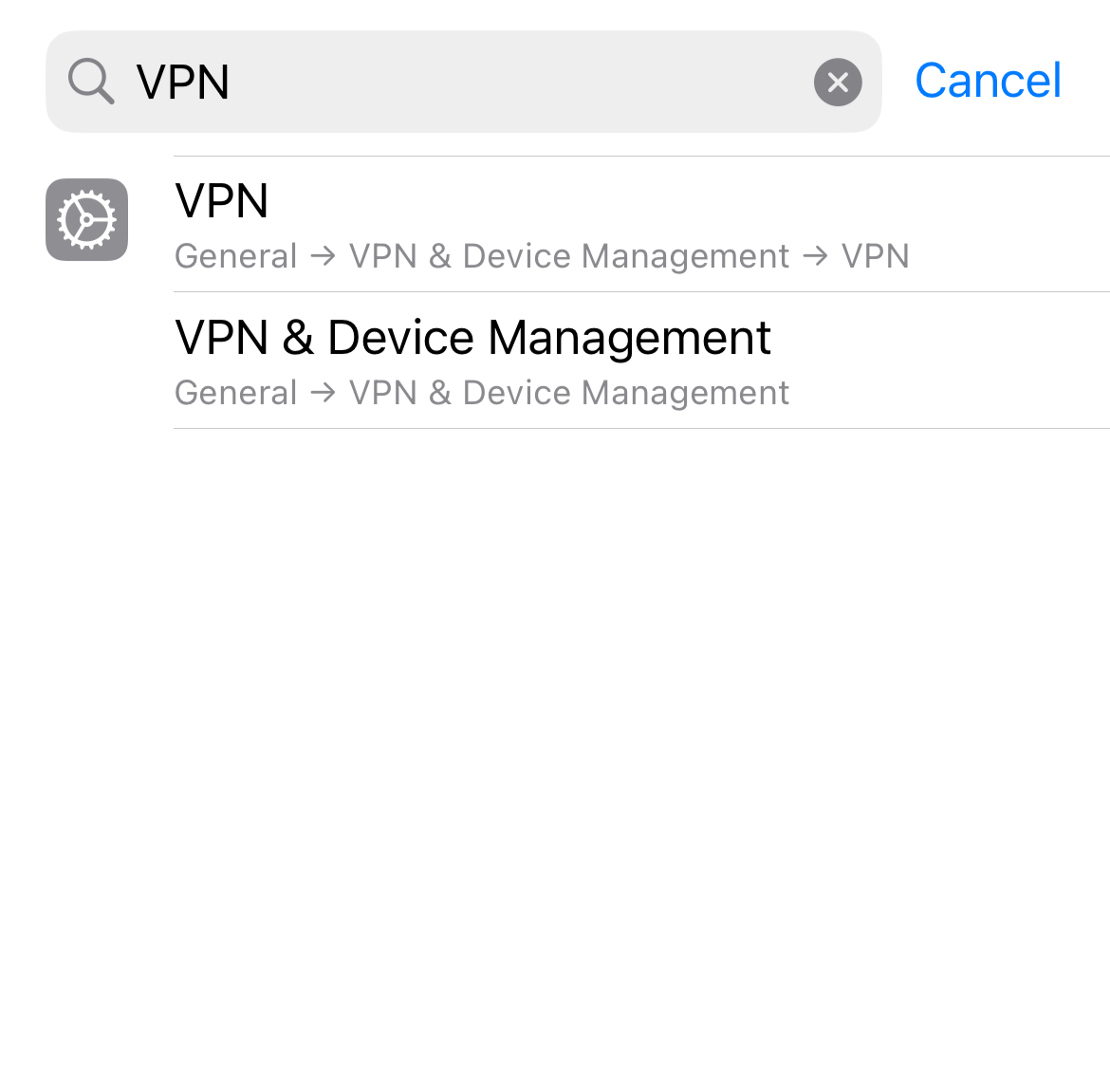
- Tap VPN or VPN & Device Management.
- Toggle VPN Status off until it says Not Connected.
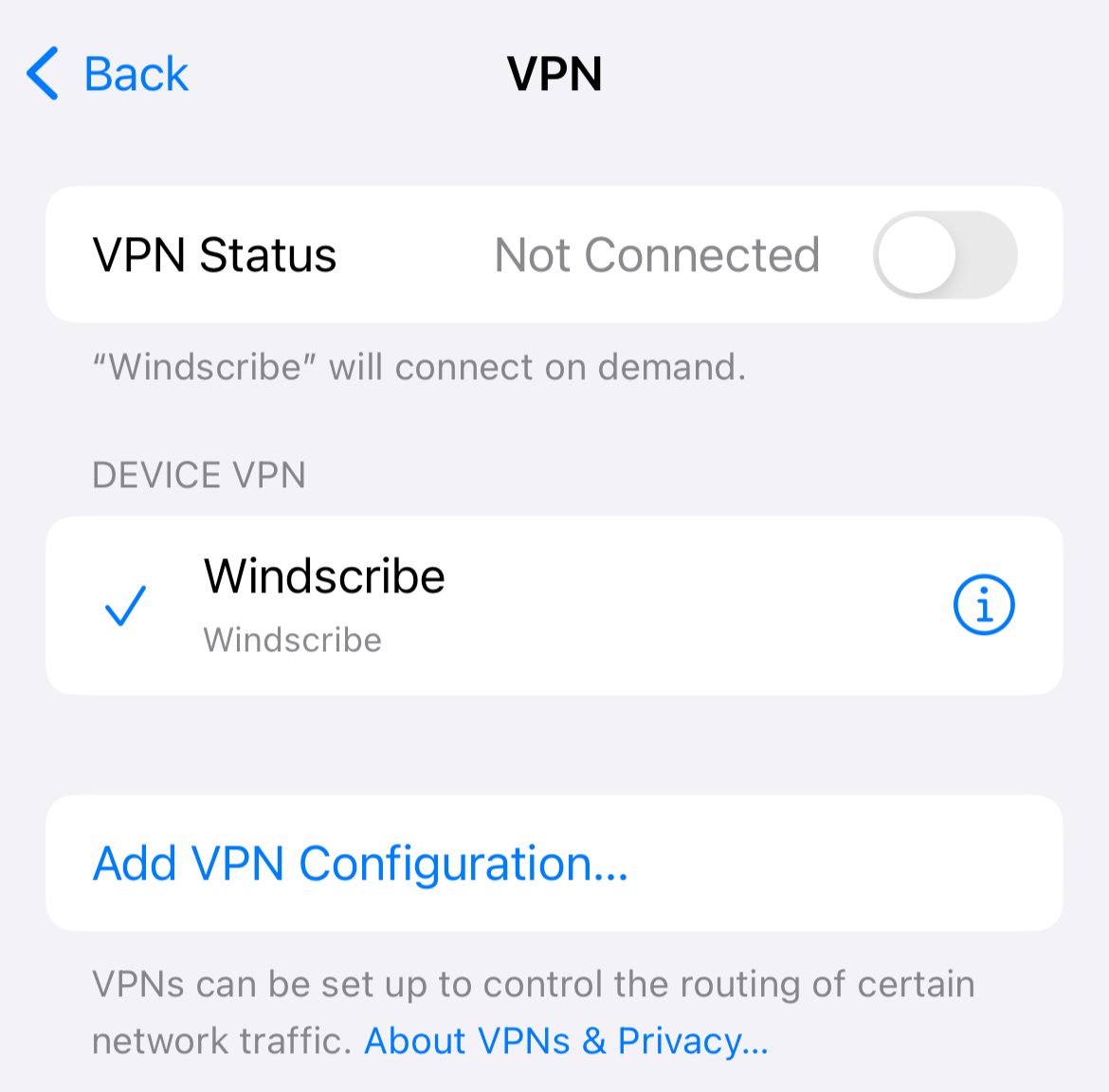
Depending on your iOS version, the VPN menu might show up directly in Settings, or it might be tucked under Settings > General > VPN & Device Management > VPN. Either way, once the status shows Not Connected, your VPN is off.
Method 2: Turn Off the VPN Through the VPN App
This is the most common way to do it, especially if you connected through a VPN app in the first place. It’s quick, it’s obvious, and it gives you a clean on/off switch without digging through iPhone settings. It also makes it easy to reconnect later with one tap.
Here’s how to turn off the VPN through the VPN app:
- Open your VPN app.
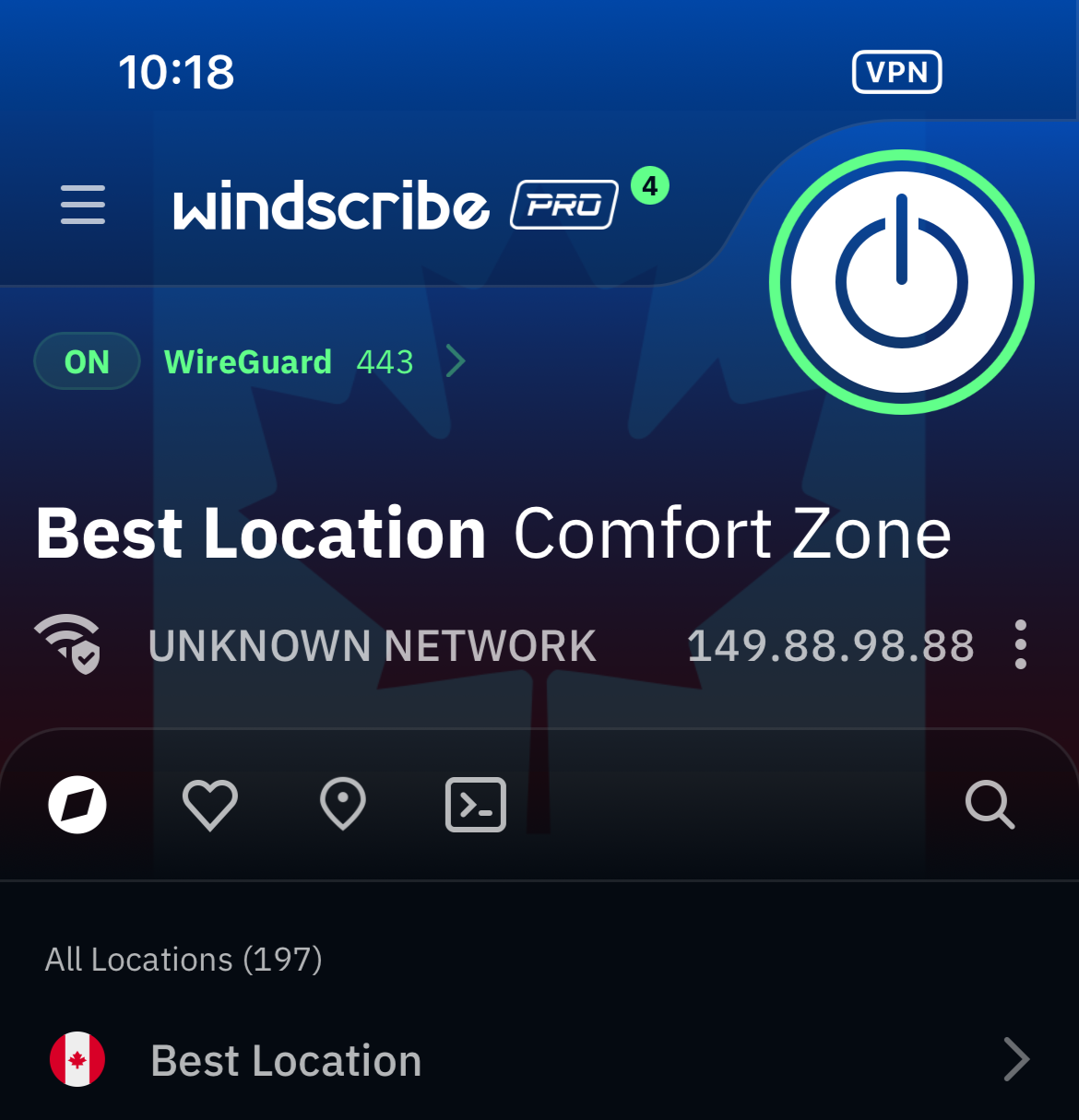
- Tap the disconnect or power button.
- Check that the VPN icon disappears from your status bar.
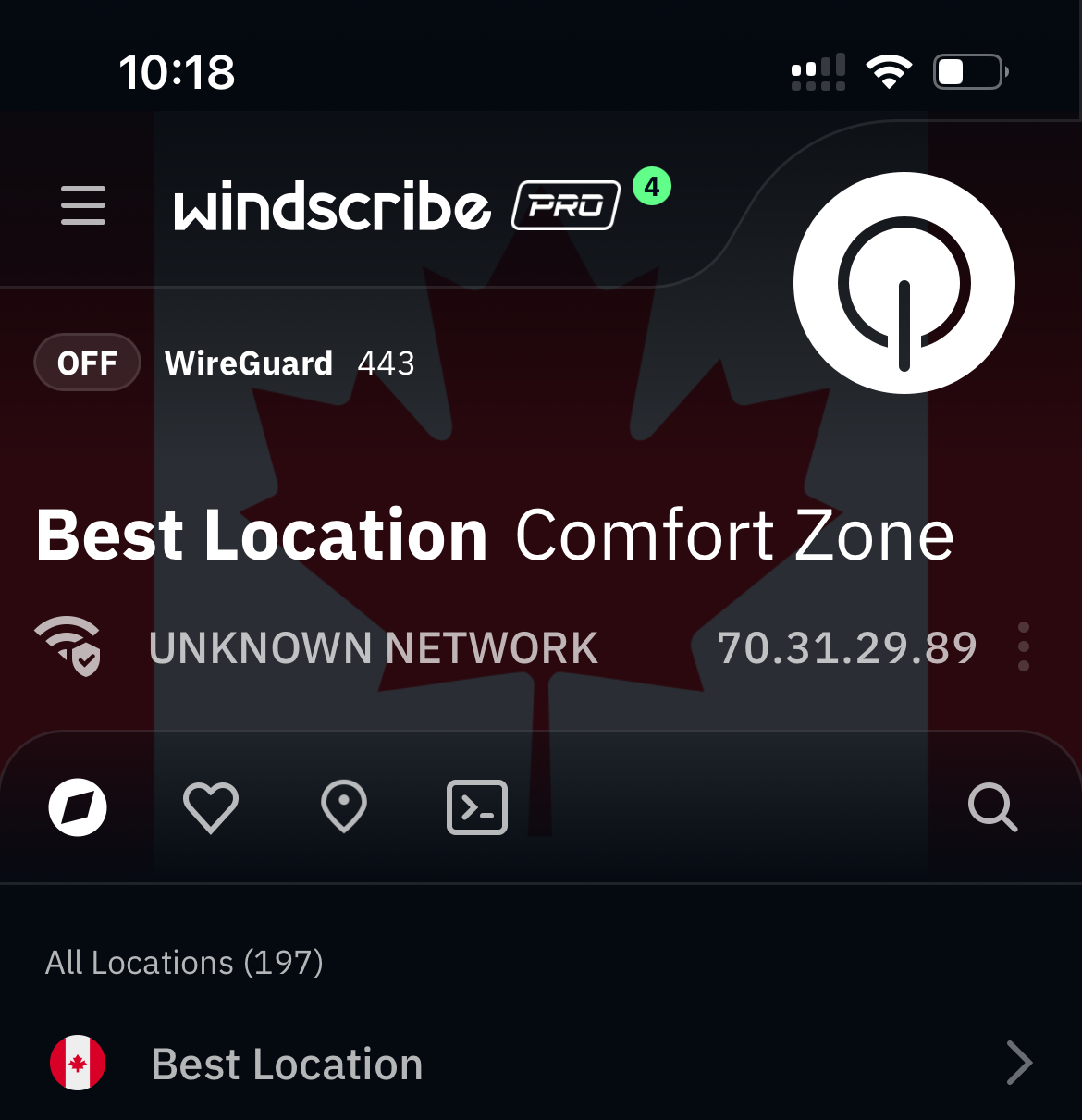
In the Windscribe app, it’s as simple as tapping the big power button to disconnect. Once the VPN is off, the VPN indicator should vanish from the status bar (or Control Center), and your iPhone will go back to using your normal connection.
VPN Keeps Turning Back On? Here's Why (and How to Fix It)
If your VPN keeps turning itself back on, you’re not imagining things. In most cases, it’s happening because iOS or the VPN app is set to auto-reconnect on purpose. The fix is usually just flipping off one or two settings so the VPN only connects when you tell it to.
Connect on Demand (iOS feature)
This is an iOS feature that automatically reconnects your VPN when certain conditions are met, like switching networks or waking your phone up. If you want full manual control, turn it off. Here’s how to do that:
- Open Settings.
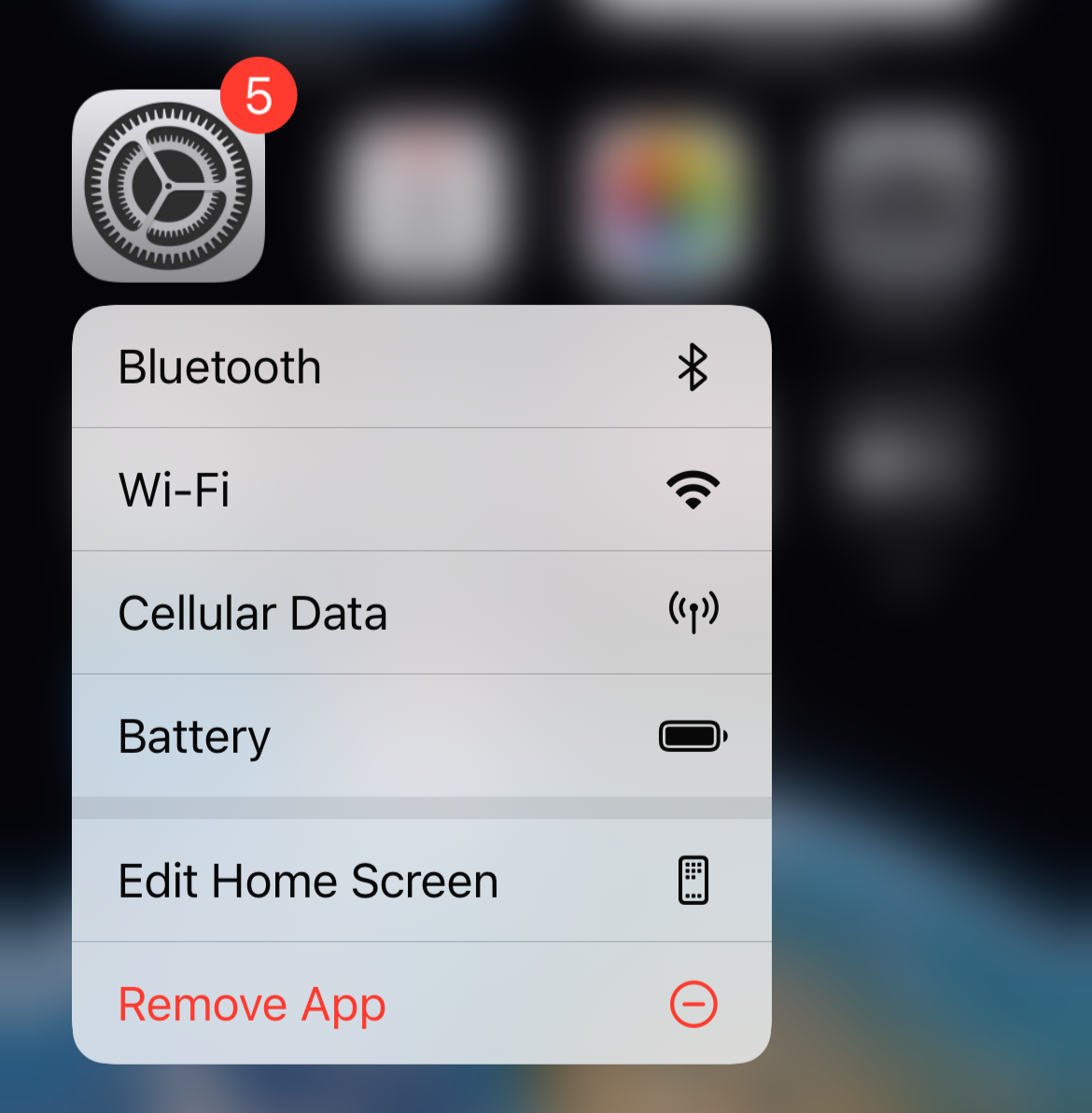
- Tap VPN, then tap the ⓘ next to your VPN.
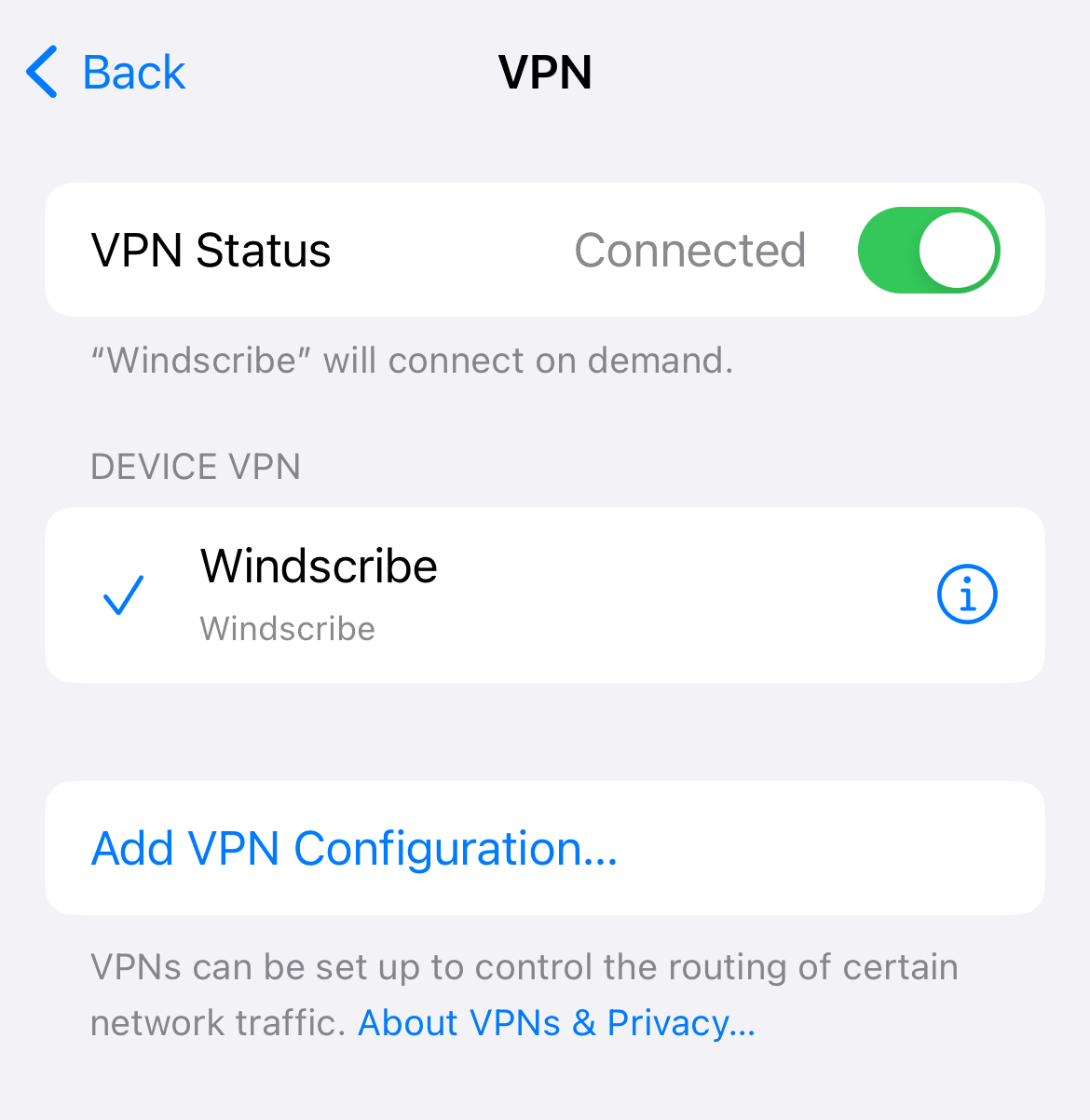
- Toggle Connect on Demand off.
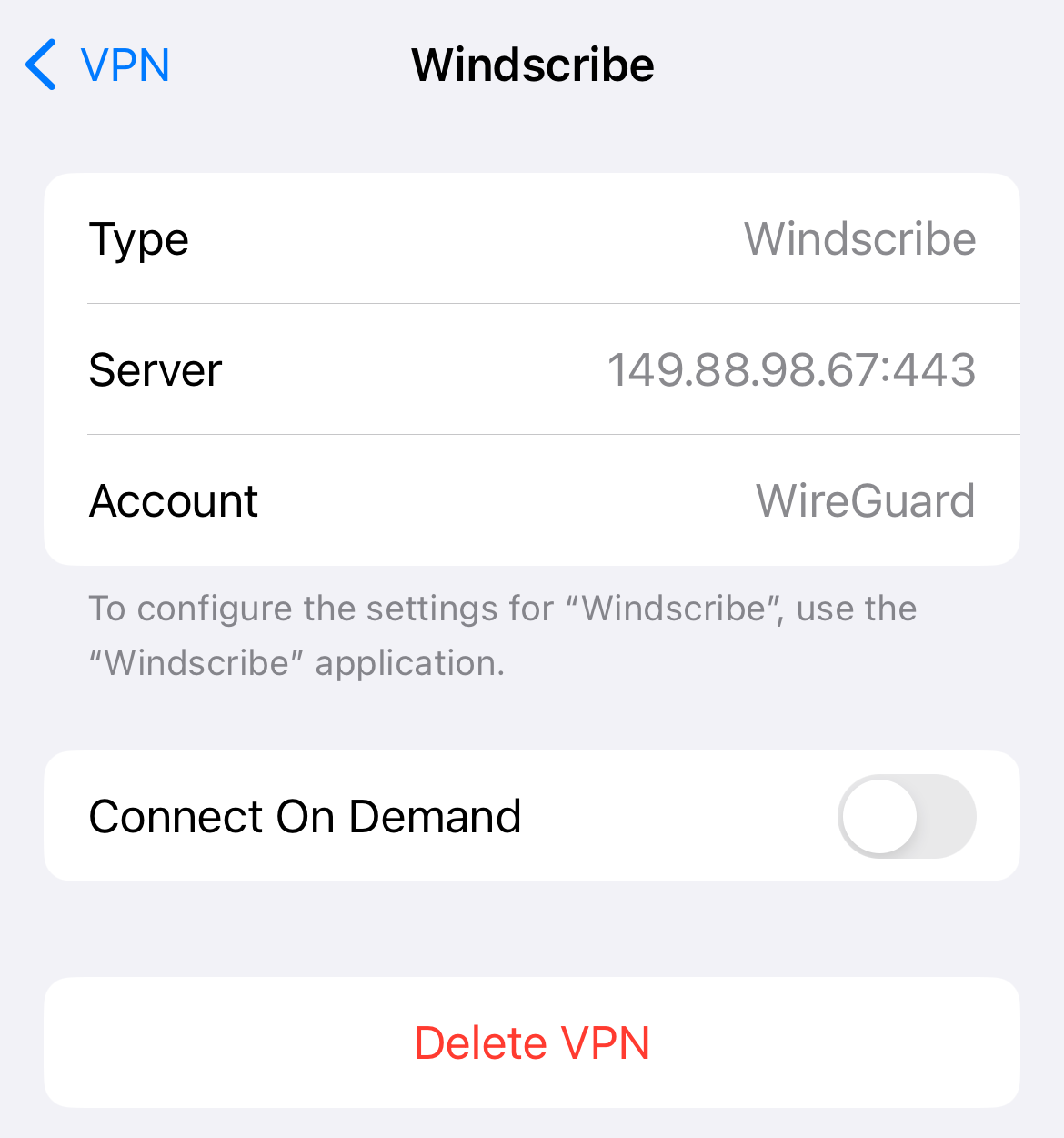
Depending on your iOS version, the VPN menu might be directly in Settings or under Settings > General > VPN & Device Management > VPN, but the idea is the same: find your VPN details page and disable Connect on Demand.
Auto-Connect in the VPN App
Many VPN apps have their own auto-connect or always-on behavior built in, separate from iOS. If that’s enabled, the app will keep reconnecting even if you disconnect it manually. And if you don’t want it to keep re-connecting automatically, you have to disable this option in the VPN app settings.
Here’s how to do that:
- Open your VPN app.
- Go to Settings or Preferences.
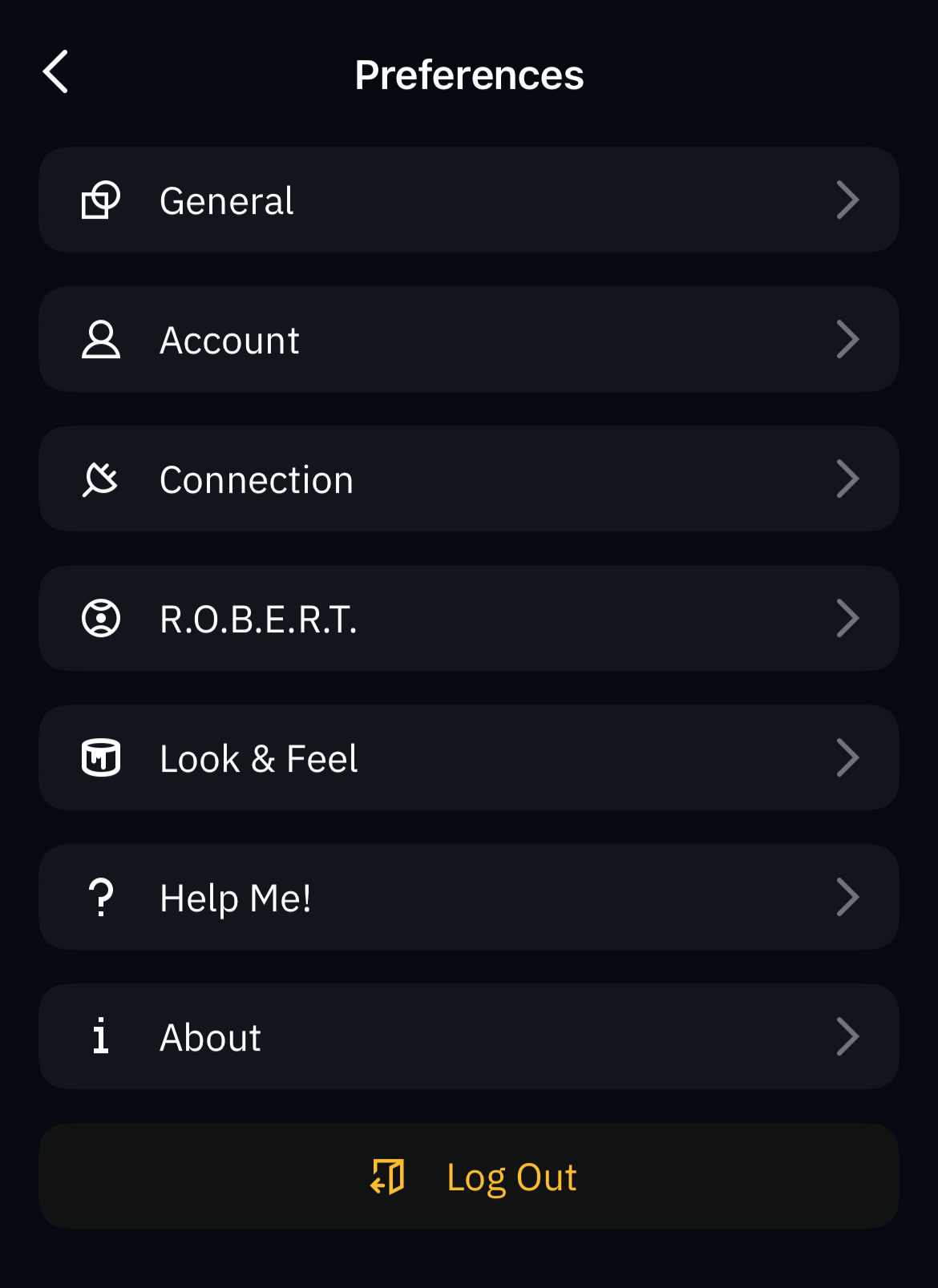
- Find and turn off options like Auto-Connect, Always On, or Connect on Launch.
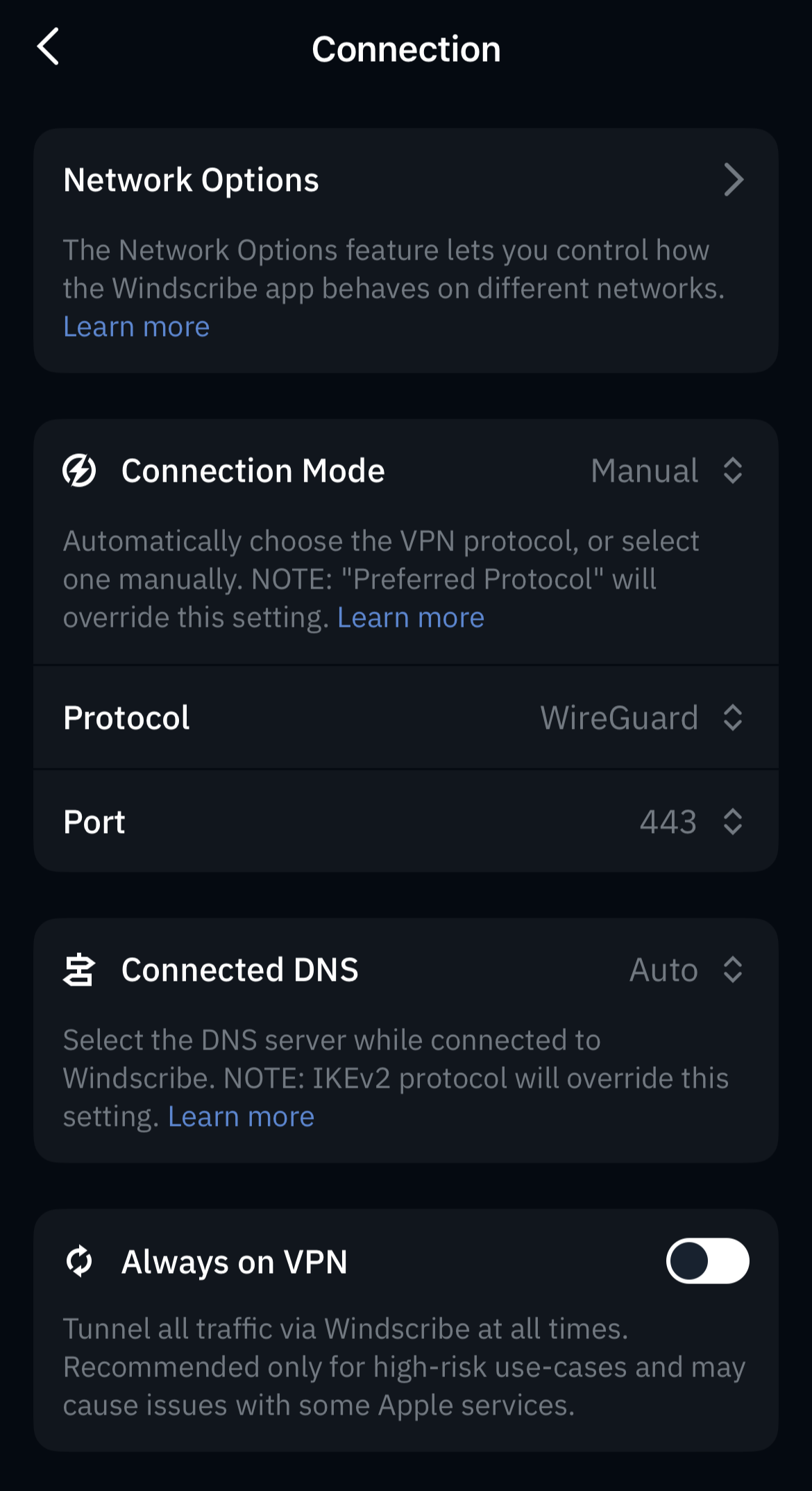
The exact label varies by app. In the Windscribe iPhone app, we have an Always On VPN feature. You can find it under Preferences > Connection. To disable it, just toggle it off.
Kill Switch Features
Some VPNs also have a kill switch or firewall feature that’s designed to prevent any unprotected traffic. If you disconnect, the app may reconnect automatically, or block traffic until the VPN is back on, depending on how it’s implemented.
If you prefer to have more manual control over your VPN connection, you can disable this feature in the VPN app settings. Here’s how to do that:
- Open your VPN app settings.
- Look for the Kill Switch, Firewall, or Always On feature.
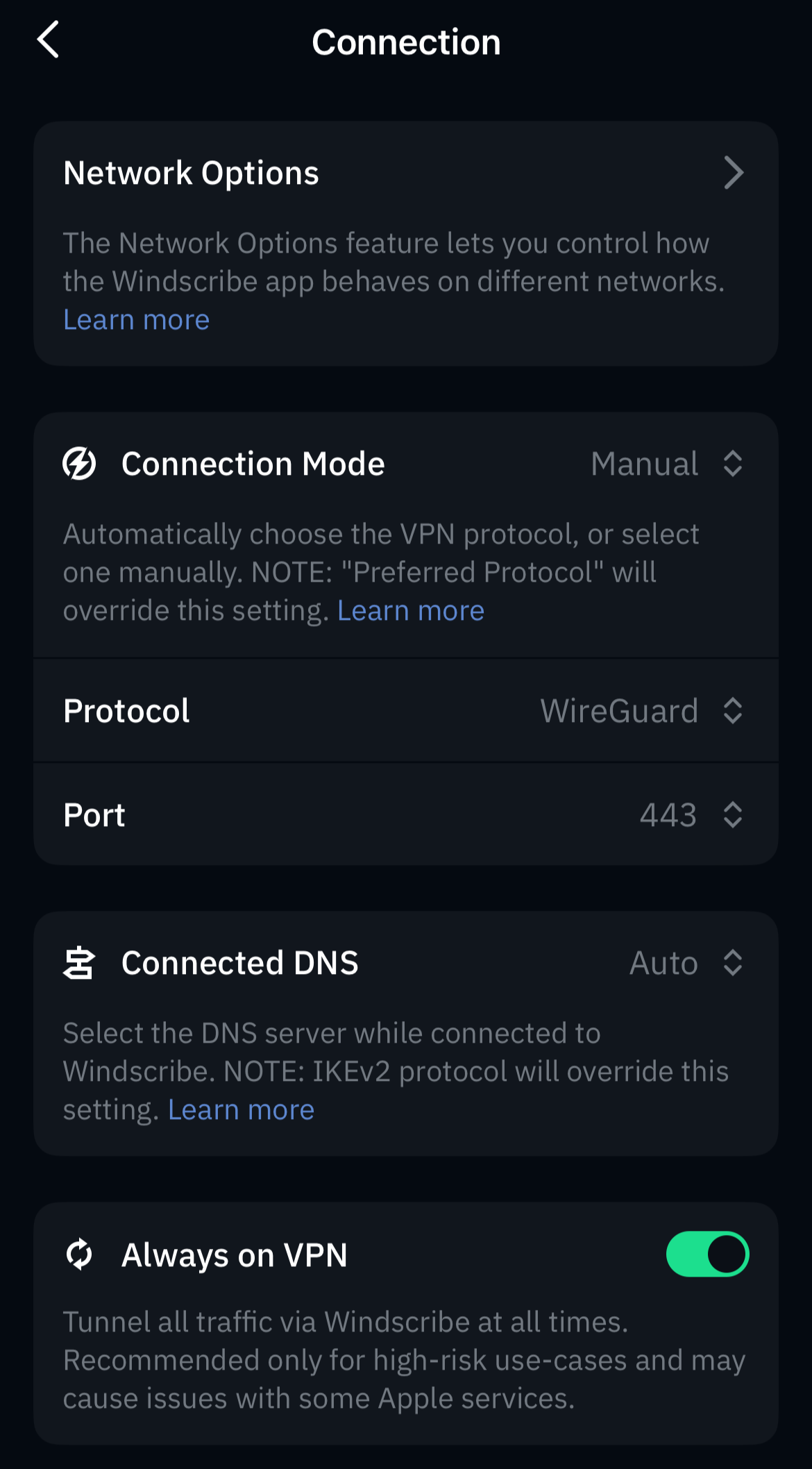
- Turn it off, and voilá!
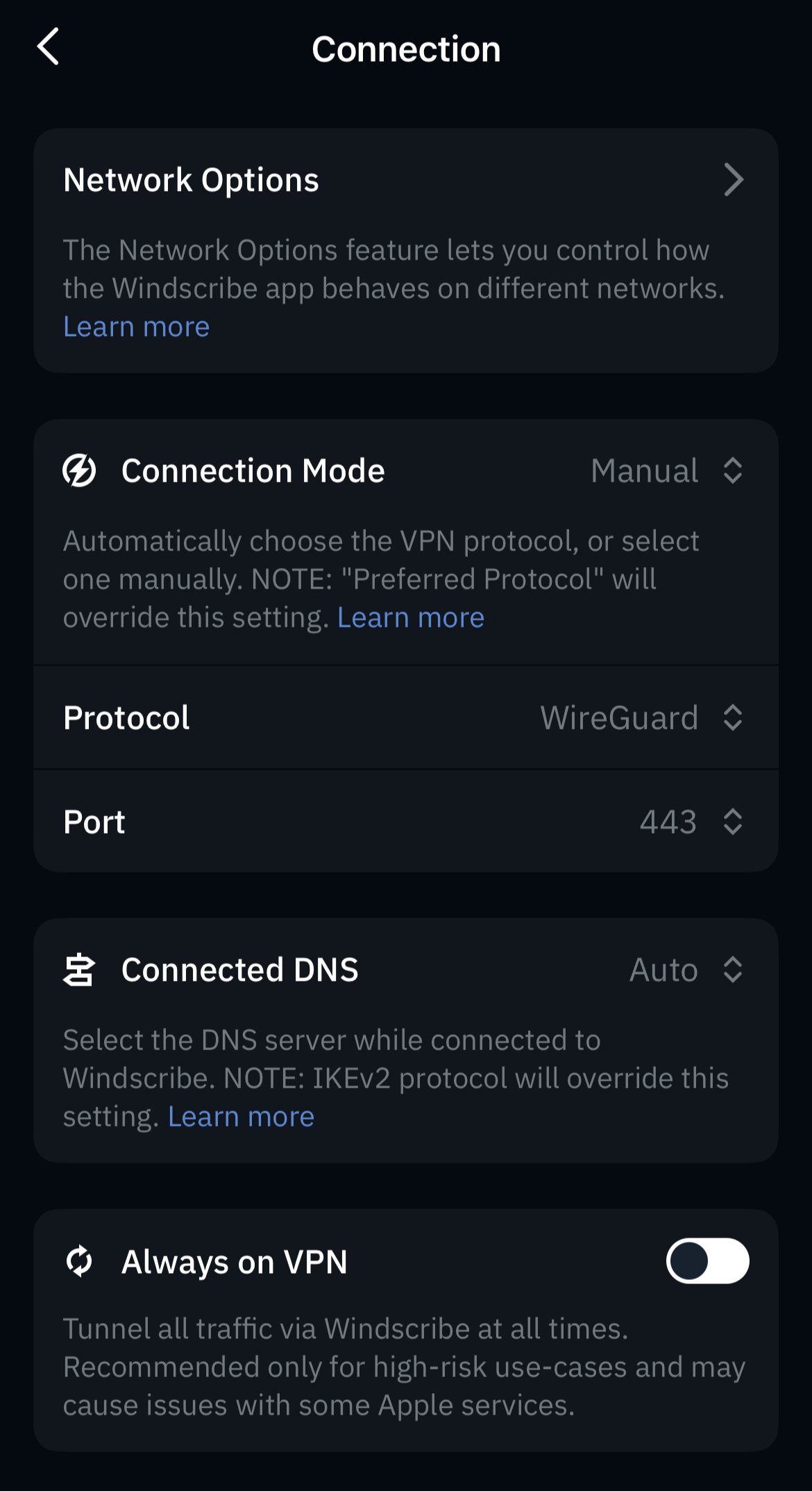
Turning this off gives you more manual control, but it also means your phone can use the internet normally when the VPN is off, which is exactly what some kill switches are designed to prevent.
How to Remove a VPN from Your iPhone Completely
Turning a VPN off is temporary. If you want it gone for good, you’ll need to remove it from your iPhone entirely. There are two ways to do that: delete the VPN app (usually enough), or manually remove the VPN configuration from iOS settings.
Option A: Delete the VPN App
If you don’t plan on using the VPN anymore, this is the easiest route. Here’s how to delete the VPN app from your iPhone:
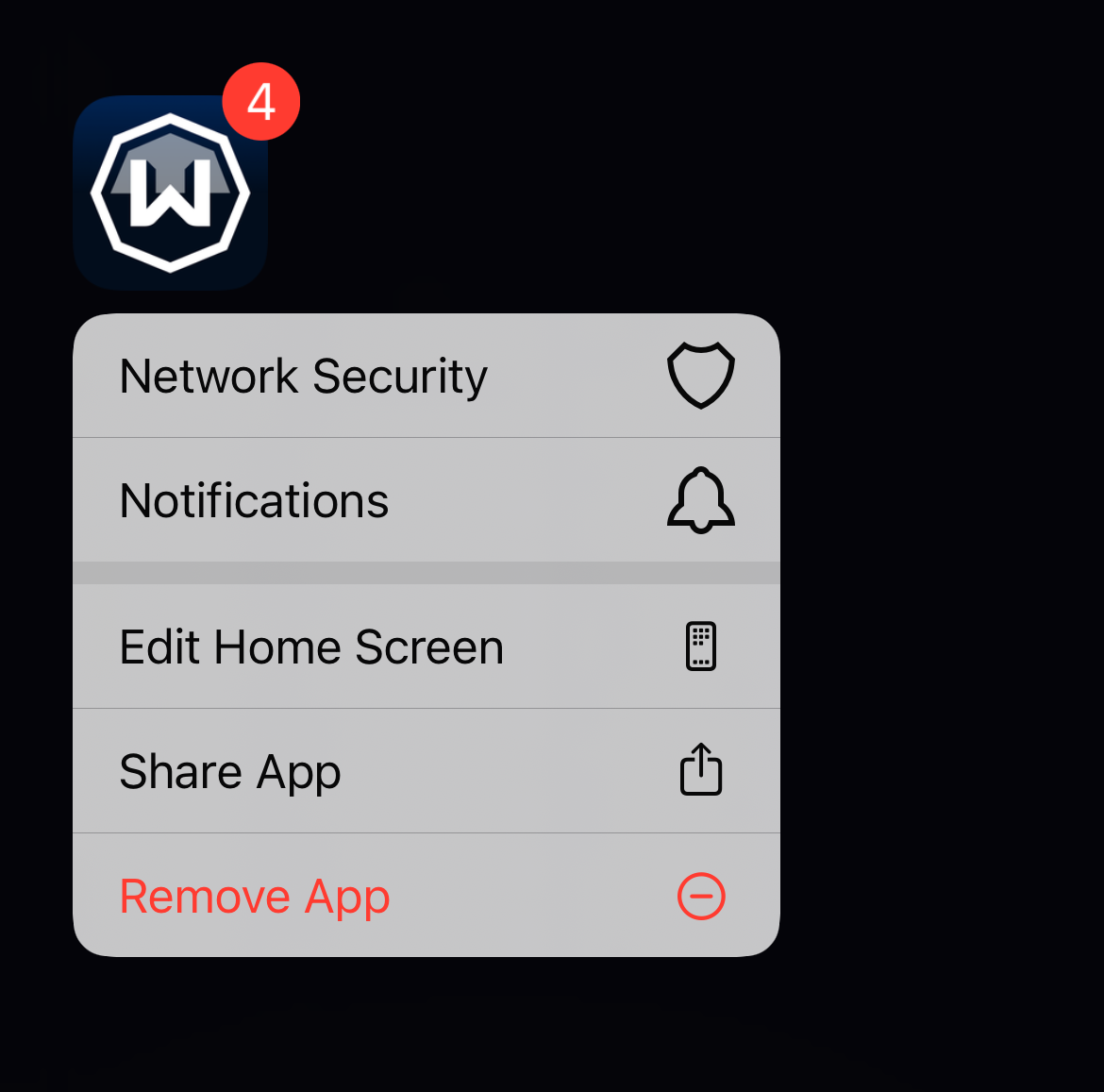
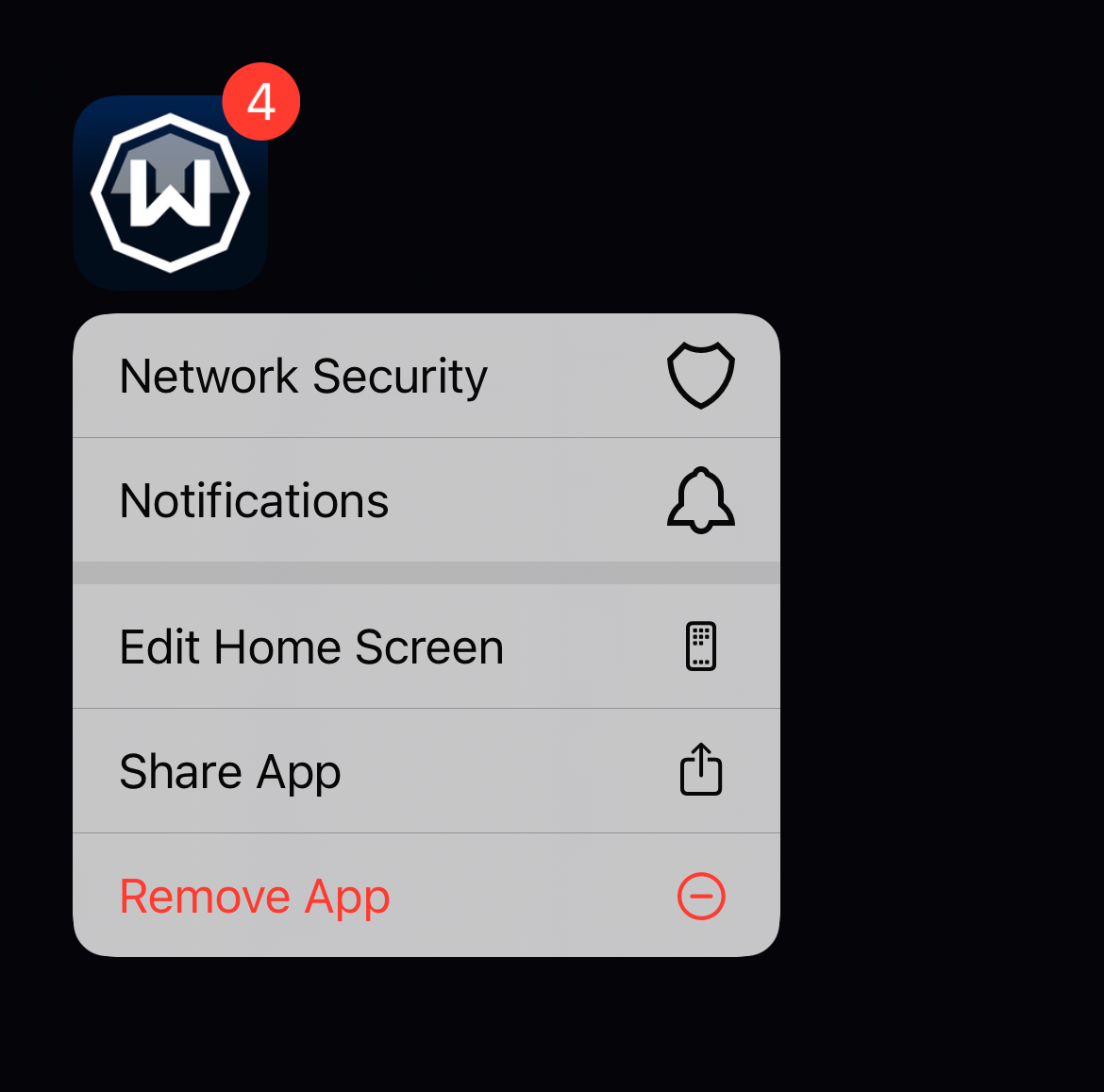
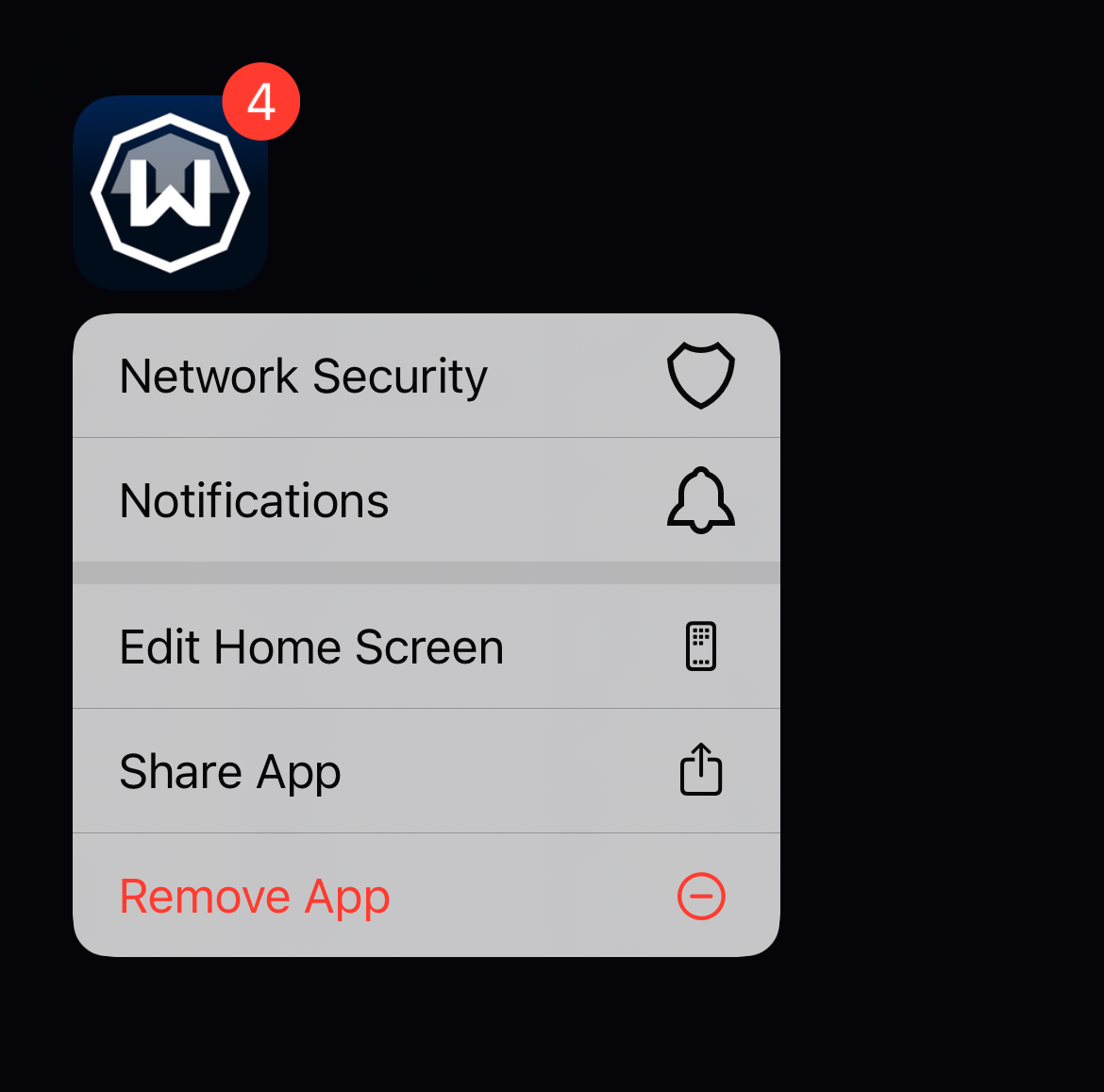
- Press and hold the VPN app icon on your Home Screen.
- Tap Remove App, then Delete App.
- That’s it!
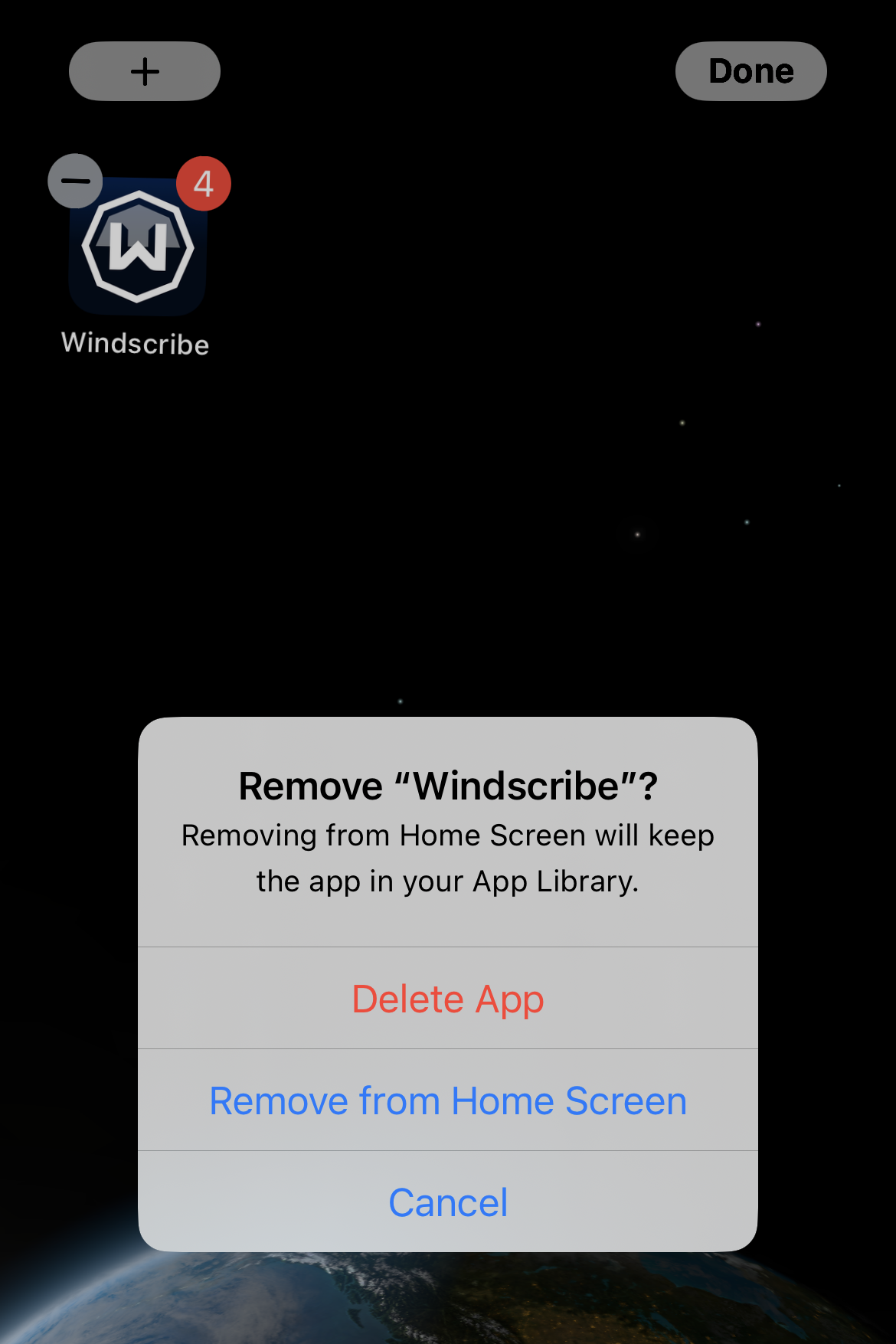
In most cases, deleting the VPN app also removes the VPN configuration it installed, so your iPhone stops trying to use it automatically.
Option B: Manually Delete the VPN Configuration
If the VPN still shows up in Settings after deleting the app, or it was set up by a profile, remove it directly from iOS. Here’s how to delete the VPN configuration manually from your device:
- Open Settings.
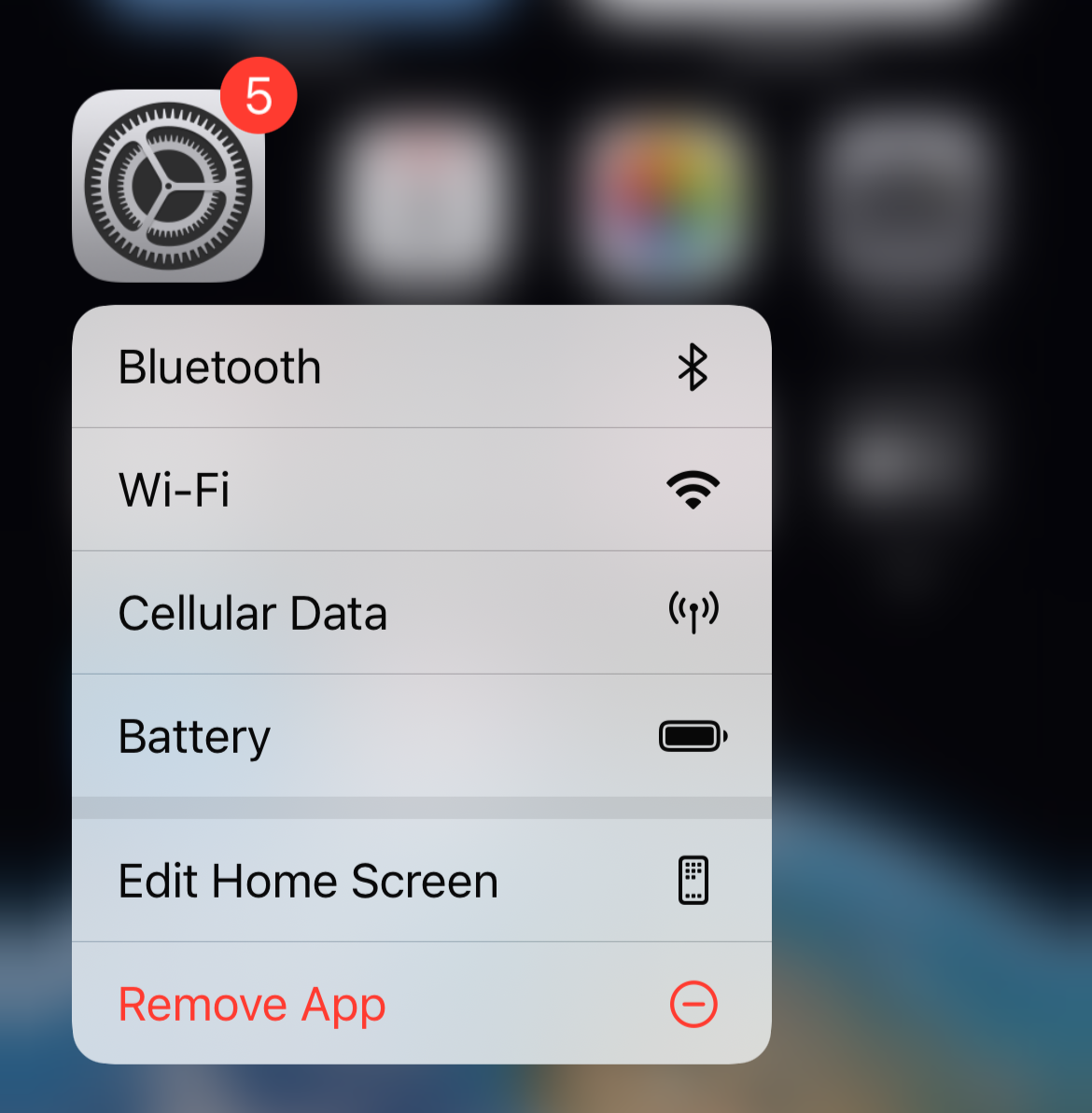
- Tap General, then VPN & Device Management.
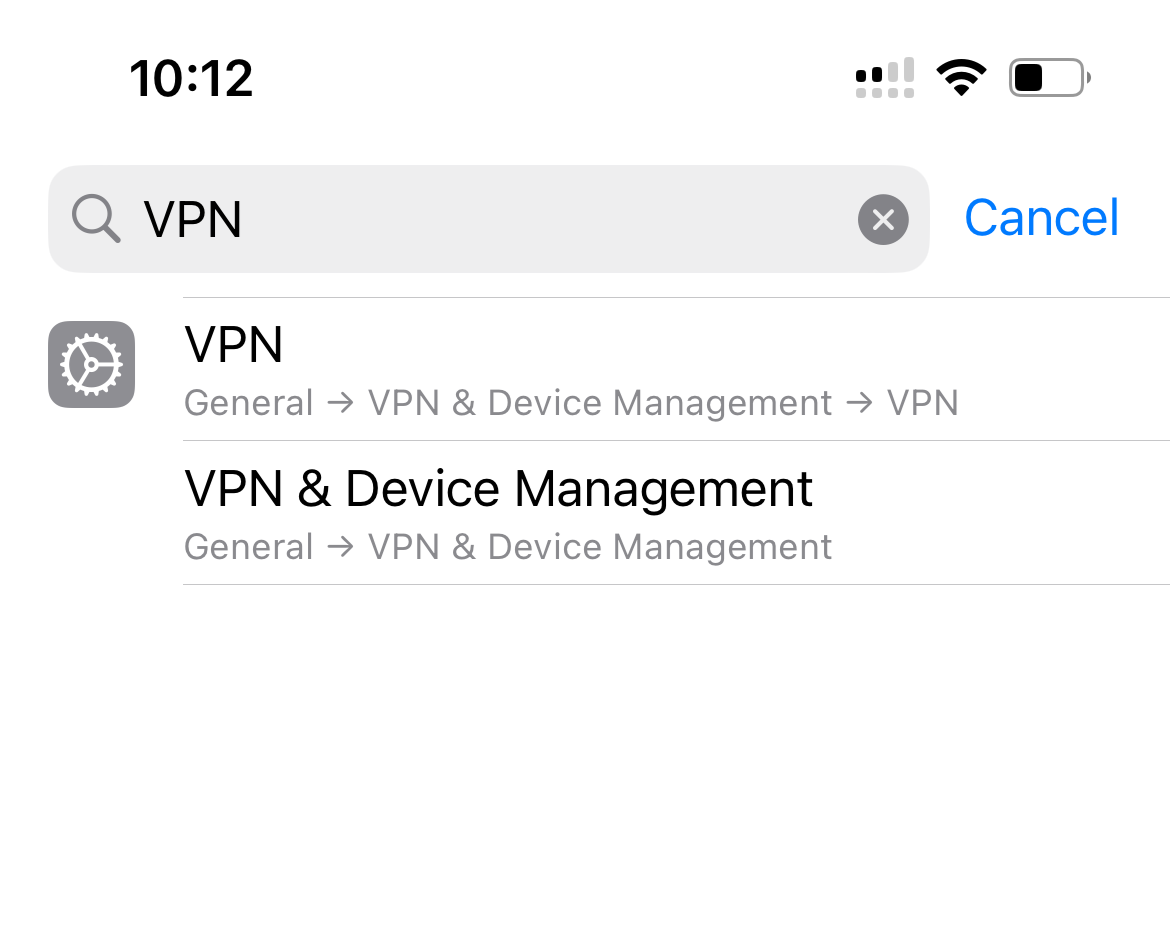
- Tap the VPN profile, then choose Delete VPN (or remove the profile).
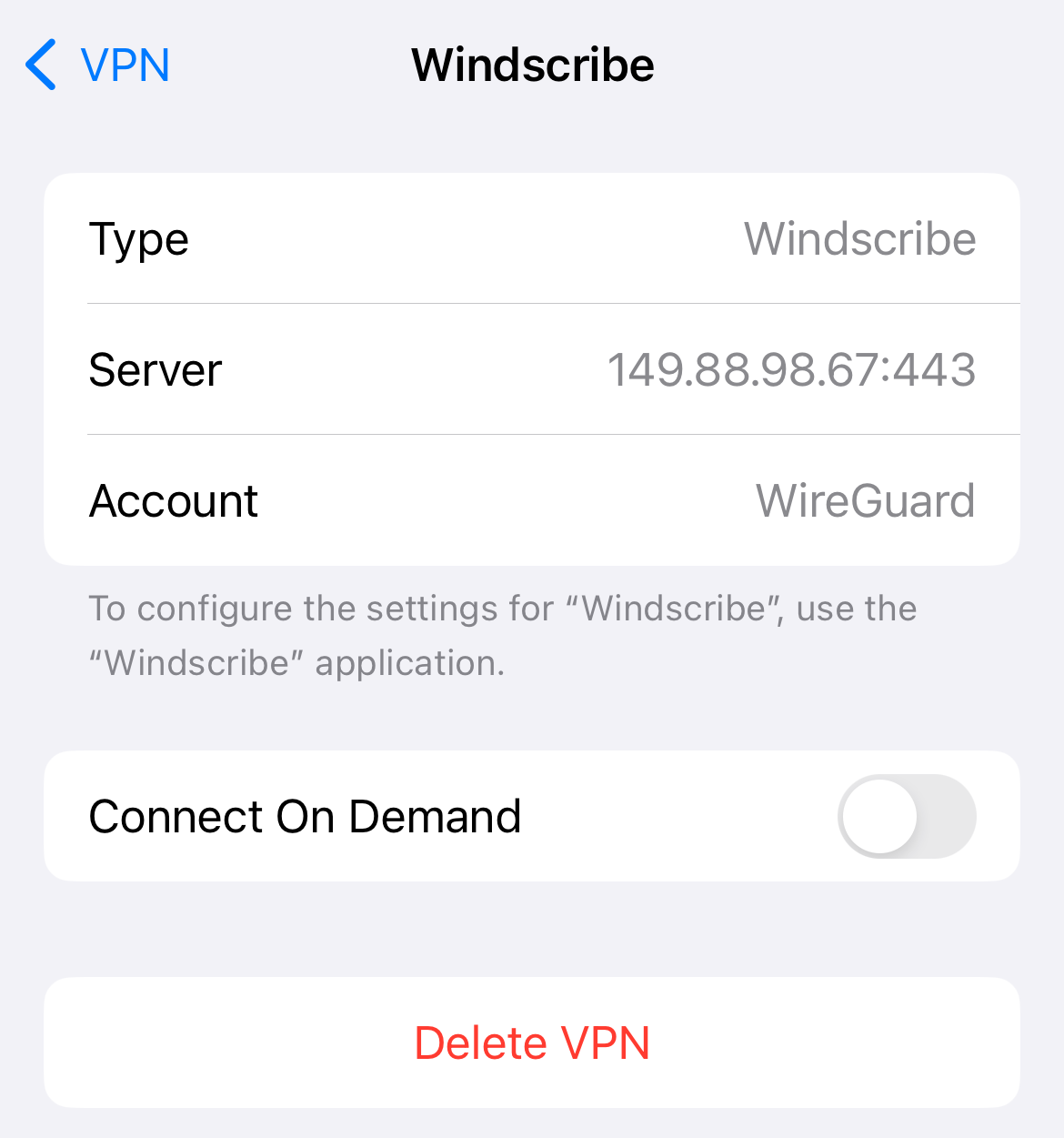
If the VPN was installed by a workplace, school, or mobile device management system, you might not be able to delete it yourself. In that case, iOS may require admin permission to remove the profile.
What About iCloud Private Relay?
iCloud Private Relay often gets confused with a VPN, but it isn’t one. It’s a privacy feature built into iOS that only affects Safari traffic and a small set of system requests. It doesn't encrypt all your internet traffic, and it doesn’t protect apps outside Safari the way a real VPN does.
Because it works quietly in the background, Private Relay can make it feel like “something VPN-ish” is happening even when you haven’t installed a VPN app. If you’re seeing privacy behavior without a VPN installed, it could be iCloud Private Relay, or in some cases, an enterprise or device management profile.
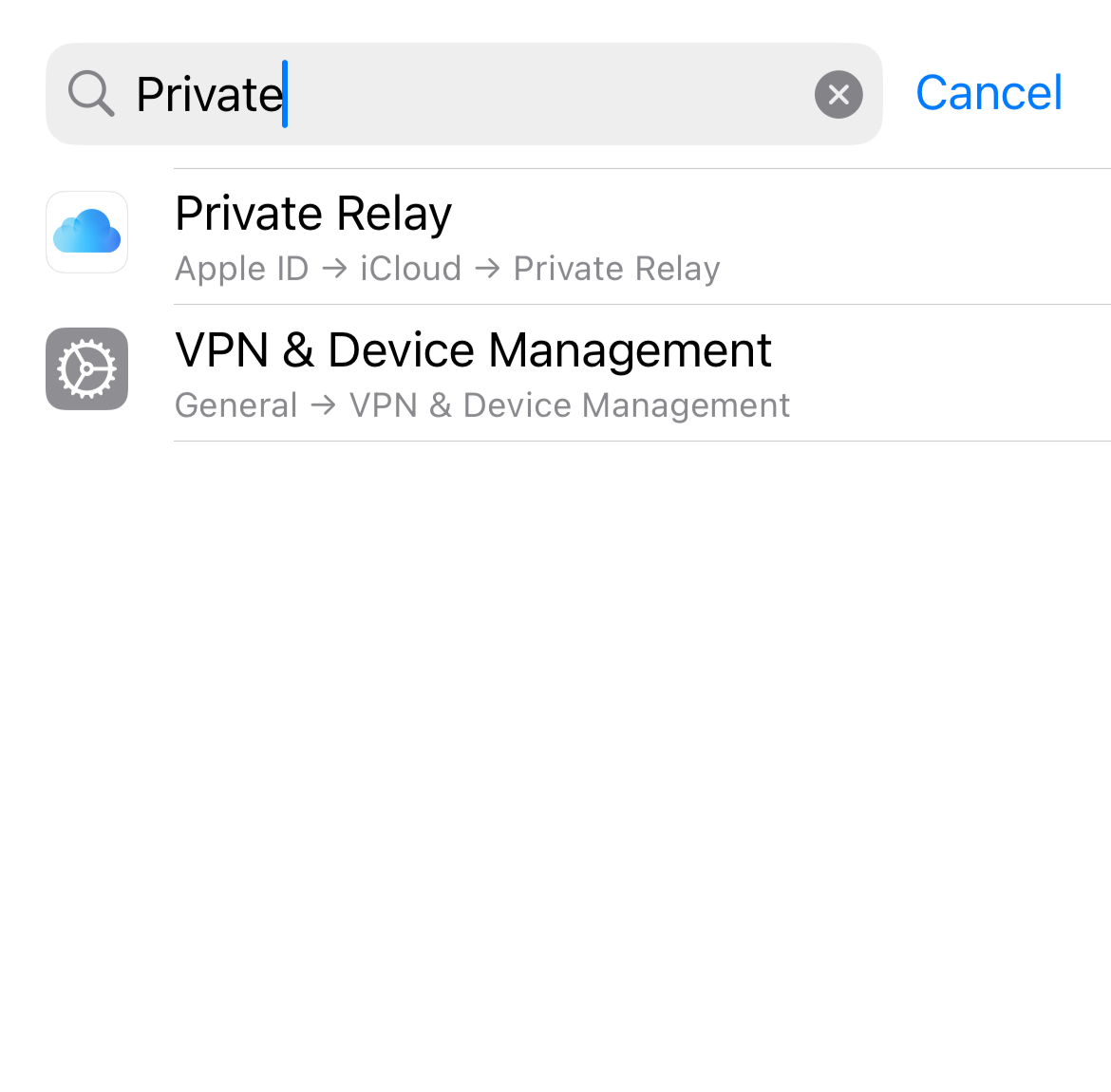
If you want to turn it off, go to Settings > [your name] > iCloud > Private Relay, then toggle it off. Once disabled, Safari traffic goes back to using your normal connection.
When Should You Turn Off Your VPN?
We’re a VPN company, so duh, our default advice is “leave it on.” But there are times when turning it off is genuinely the better move. Since a VPN routes your traffic through another server, your connection can look like it’s coming from somewhere else, and that can confuse apps that rely on your real location or a direct local network path.
If you’re using location-dependent apps like maps, ride-sharing, food delivery, or local weather, switching the VPN off can make things more accurate and prevent weird “why am I in another city” moments. It’s also a solid troubleshooting step if your internet feels slow or flaky. Turn the VPN off, test again, and then you’ll know whether the VPN is part of the issue or it’s just your network having a bad day.
Some services also block VPN traffic, including certain banking apps, streaming platforms, and websites with aggressive fraud filters. In those cases, disconnecting temporarily is often the quickest fix. You might also turn it off if you’re trying to conserve battery in a low-power situation, or if you’re connecting to a corporate or school network that requires direct access to internal resources.
Just don’t forget to switch it back on when you’re on public Wi-Fi or doing anything sensitive like logging into accounts, shopping, or sending private info.
Why Your iPhone Shows a VPN Icon When You Don’t Have One
If you see a VPN icon in your status bar, but you don’t remember installing a VPN, or you’re sure you don’t have one, there’s a boring explanation for this weird little mystery.
On iPhone, some ad blockers and content blockers use Apple’s VPN framework to run local filtering, like DNS blocking or tracker blocking. That can make the VPN icon show up even though you didn’t install an actual VPN service.
In this setup, your traffic isn’t being routed through a VPN server, and you’re not getting the usual VPN encryption. Your iPhone is basically using the VPN slot as a plumbing shortcut, so the blocker can filter traffic locally. Apps like Blokada, 1Blocker, and other filtering tools can do this, so the icon alone doesn’t automatically mean you’re connected to a VPN.
So, if you see the VPN icon but don’t remember installing a VPN, check whether you’ve installed an ad blocker, a DNS filtering app, or any privacy app that mentions local filtering. Turning that app off, or removing its configuration in Settings > General > VPN & Device Management, is usually what you’re actually trying to do.

Frequently Asked Questions
Does iPhone have a built-in VPN?
No. iPhone has built-in VPN support (the system settings and framework that let you connect), but it doesn’t include an actual VPN service. To use a VPN, you still need a third-party VPN app (like Windscribe) or to manually add VPN settings from a provider. iPhone includes iCloud Private Relay, which acts like a VPN in Safari, but it only works within Safari and doesn’t offer full-device encryption.
How do I know if my VPN is on?
Look for the VPN indicator in the status bar at the top of your screen. On Face ID iPhones, it can be easier to spot by swiping down from the top-right to open Control Center, where you’ll see the VPN status more clearly. You can also go to your VPN app and see if it’s activated. In the Windscribe app, you’ll see the big power button turn green when the VPn is on.
Will turning off my VPN cancel my subscription?
Nope! And be careful with that. Turning off the VPN just disconnects it, and deleting the app still doesn’t cancel billing. To cancel, you need to cancel through your VPN provider’s account settings or through Apple Subscriptions in your iPhone settings.
Why does my VPN say "Connected" even after I turn it off?
Usually, it’s because the app is set to auto-reconnect. Check Connect on Demand in your iPhone VPN settings, and also look inside the VPN app for settings like Auto-Connect, Always On, or similar. Either one can override a manual disconnect and flip it back on.


